
The Certificate Manager on CE Zoom includes two key features:
- Course Certificates – Manage and customize the CE certificates issued for your courses, ensuring they include all required details and comply with provider requirements. (How to Navigate and Use the Certificate Manager in CE Zoom (V2))
- Provider Statement & Logo Manager – Automatically track provider approvals, renewal periods, and apply the most current provider logo and statement to each certificate without manual updates. (How to Navigate and Use the Provider Statement & Logo Manager in CE Zoom (V2))
These features work together to streamline certificate creation and compliance, making CE Zoom a powerful tool for CE providers.
The Certificate Manager is available from two access points. Use the Quick Links below to jump to the workflow that matches where you are accessing the Certificate Manager.
Understanding the CE Certificate Manager Screen from inside the course creation wizard
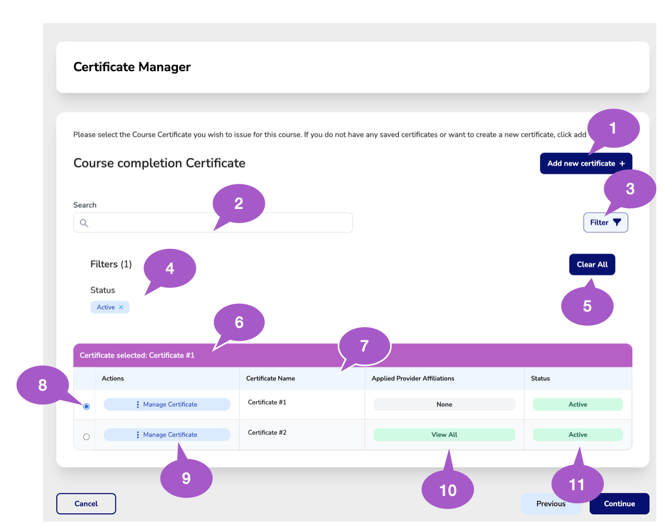
1. Add New Certificate
Click Add New Certificate to create a new CE certificate template.
2. Search Certificates
Use the search bar to quickly locate certificates by name or keyword.
3. Filter Certificates
Click Filter to narrow your certificate list based on available filtering options.
4. Applied Filters
View active filters currently applied to the certificate list. Active filters can impact which certificates are displayed.
5. Clear Filters
Click Clear All to remove all applied filters and return to the full certificate list.
6. Currently Selected Certificate
This banner displays which certificate is currently selected and will be attached to the course upon saving.
7. Certificate List Table
View all saved certificates, certificate details, provider affiliations, and current statuses.
8. Select Certificate
Use the radio button to select which certificate should be issued for this course. Only one certificate can be selected at a time.
9. Manage Certificate
Click Manage Certificate to open, edit, and manage an existing certificate.
10. Applied Provider Affiliations
Displays which provider affiliations are connected to the certificate. Select View All to review associated providers.
11. Certificate Status
Displays the current certificate status, such as Active or Inactive.
Understanding the CE Certificate Manager Screen from the navigation menu
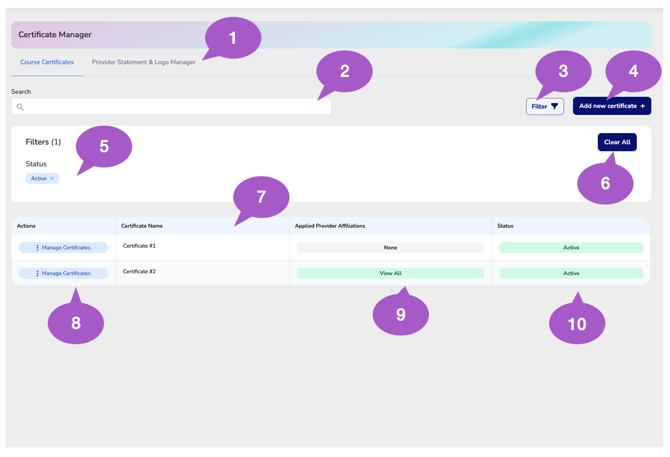
1. Certificate Manager Tabs
Use the tabs to switch between managing Course Certificates and Provider Statements & Logo Manager.
2. Search Certificates
Use the search bar to quickly locate certificates by name or keyword.
3. Filter Certificates
Click Filter to narrow your certificate list based on available filtering options.
4. Add New Certificate
Click Add New Certificate to create a new CE certificate template.
5. Applied Filters
View active filters currently applied to the certificate list. Active filters can impact which certificates are displayed.
6. Clear Filters
Click Clear All to remove all applied filters and return to the full certificate list.
7. Certificate List Table
View all saved certificates, certificate details, provider affiliations, and current statuses.
8. Manage Certificate
Click Manage Certificate to open, edit, and manage an existing certificate.
9. Applied Provider Affiliations
Displays which provider affiliations are connected to the certificate. Select View All to see the full list of associated providers.
10. Certificate Status
Displays the current certificate status, such as Active or Inactive.
Key Features of CE Zooms Certificate Manager:
- Customize Certificates – Add your logos, provider statements, disclaimers, and signatures to match your organization's branding and approval requirements.
- Seamless Provider Approval Management – Automatically applies the most current provider logo and approval statement without manual updates.
- Personalized Certificates for Each Attendee – Auto-populates attendee name, license number, course title, dates, verification codes, and more, preventing unauthorized alterations and plagiarism.
- Error Prevention & Compliance – Ensures certificates meet provider approval guidelines, reducing the risk of issuing non-compliant CE credits.
- No More Lost Certificates – Attendees can easily access and retrieve their CE certificates anytime, eliminating the hassle of lost or misplaced documents.
With CE Zoom’s CE Certificate Manager, you can save time, ensure accuracy, and maintain compliance—all while providing a seamless experience for both providers and attendees.