
How to edit a Course Certificate in CE Zoom
- Log in to your CE Zoom company account (www.cezoom.com)
- Two access points to edit a CE Certificate
- From the Navigation Menu, click on Certificate Manager
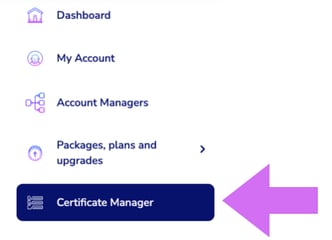
- From inside the course wizard, navigate to the Certificate Manager step
- From the Navigation Menu, click on Certificate Manager
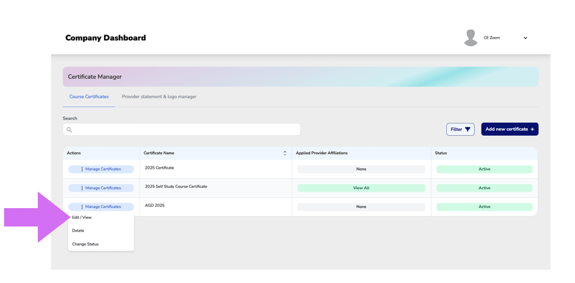
- From the Course Certificate Manager, locate the certificate you want to update.
- Click Manage Certificate to expand the dropdown menu.
- Select Edit/View to open the editing screen
- You can only edit course certificates that have not been used. Once a certificate has been attached to a course and verified, it becomes locked and can no longer be updated.
- ⚠️ Uneditable Notification: If one or more courses attached to this certificate have been verified the certificate will have the following notification:

-
If a locked CE certificate is no longer accurate, you will need to:
- Inactivate the existing certificate ➡ to prevent further selection on future courses.
- Create a new certificate ➡ with the correct information.
- Attach the new certificate to all future courses.
If the new certificate needs to be applied to a previously verified course, please reach out to help@cezoom.com for Company Tech Support. Our team can assist with making necessary adjustments as part of our supplemental support services.