
How to add a Provider Statement & Logo on CE Zoom
- Fill out the form
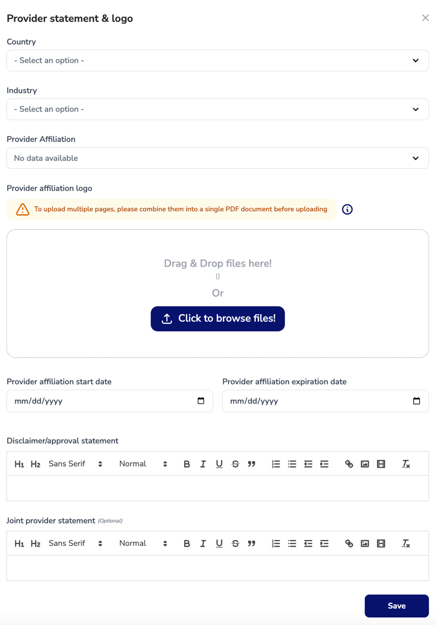
- Country: Select the country where the approval was granted. (Single select)
- Industry: Select the industry associated with the approval. (Single select)
- Provider Affiliation: Select from the list of recognized providers. If you don’t see your approval listed, let us know at help@cezoom—we’d be happy to add it!
- Provider Affiliation Logo: Upload the required affiliation logo for use on your CE certificates, as specified by the accrediting organization. If there are specific guidelines on logo placement or approval statements, we recommend designing the exact layout and uploading a screenshot or image of how it should appear on your course certificates.
- Provider Affiliation Start Date: Enter the start date of the current renewal period you are adding.
- Provider Affiliation Expiration Date: Enter the expiration date of the current approval period.
- Disclaimer/Approval Statement: This statement will appear to the left of the uploaded provider logo image as described in (d). Enter the required disclaimer or approval statement as specified by the accrediting organization for use on CE certificates. If your uploaded logo already includes the approval statement as suggested in instructions (d), leave this field blank.
- Joint Provider Statement (Optional): Enter the required joint provider statement if applicable, as specified by the accrediting organization for use on CE certificates. Please note: If you add a joint provider statement here, it will appear on all certificates. This may be best managed during the CE certificate creation process. How to add a CE Certificate.
- Click save.