
The Survey Manager has two primary access points within CE Zoom. While core functionality remains similar, some tools and layout options differ depending on how you access it.
This article only focuses on:
Survey Manager from the Navigation Menu
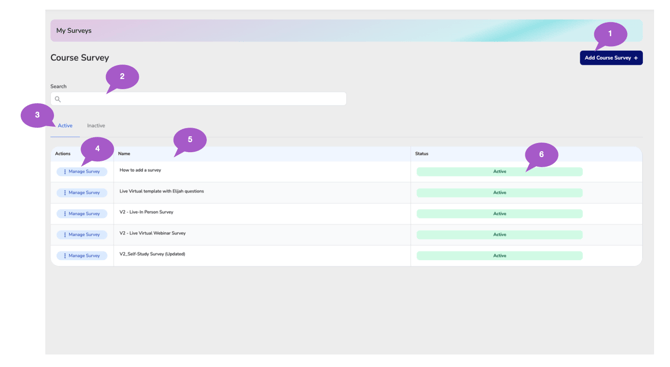
1. Add Course Survey
Click Add Course Survey to create a new survey template that can be stored and reused across multiple courses.
2. Search Surveys
Use the search bar to quickly locate surveys by survey name or keyword.
3. Active / Inactive Tabs
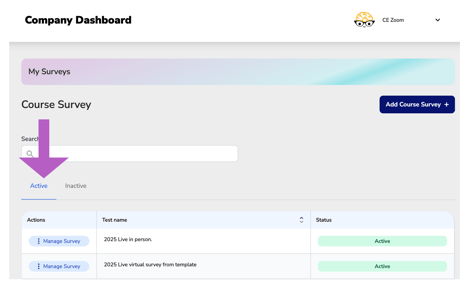
Switch between viewing surveys currently available for use and surveys marked as inactive. By default, the Survey Manager displays active surveys.
4. Manage Survey
Select Manage Survey to access available management options, including editing survey questions, changing statuses, or deleting unused surveys.
5. Survey Name Column
Displays the names of all stored surveys to help identify and organize your survey library.
6. Survey Status
Displays the current status of each survey record so you can quickly determine whether the survey is active and available for use.
The Course Evaluation Survey Manager screen displays all the course evaluation surveys you have created, organized alphabetically. Surveys are filtered by active or inactive status to streamline management.
Creating & Managing Surveys:
-
When adding a course, only active surveys are shown for selection, making it easier and faster to identify the most relevant options. Additionally, we provide four survey template types to help you quickly create a course survey.
- To maintain consistency, we recommend creating a master survey for each unique set of questions you need answered.
- Once created, a survey can be attached to multiple courses, with results tracked separately for each course.
- Once a user completes a survey, it becomes locked and cannot be edited. If changes are needed, you must create a new survey and deactivate the outdated one.
- Each survey requires a unique name for easy identification and accurate result tracking.
Start Using the Survey Manager:
- How to create a new course survey on CE Zoom
- How to edit a course survey on CE Zoom (before responses have been collected)
- How to change the status of a course survey on CE Zoom (Active/Inactive)