
How to Edit a Course Survey on CE Zoom
Follow these steps to update a course survey:
Important:
- Once a survey has been answered by an attendee, editing is locked.
- If the survey is no longer valid, mark it as Inactive and create a new survey to attach to upcoming and future courses.
Step 1: Navigate to the Survey Manager
There are 2 ways to access the survey manager
Navigation Menu
Inside the Course Wizard
Accessing the Survey Manager from the Navigation Menu
- Log into your CE Zoom (V2) Company Account. (www.cezoom.com)
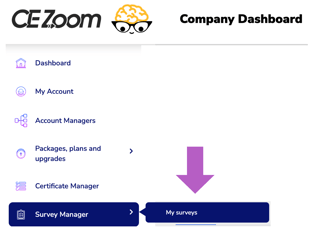
- From the left navigation menu, hover over Survey Manager to expand the menu.
- Click My Surveys.
Accessing the Survey Manager from the Course Wizard
The Survey Manager can be accessed directly from the Course Wizard while editing a course.
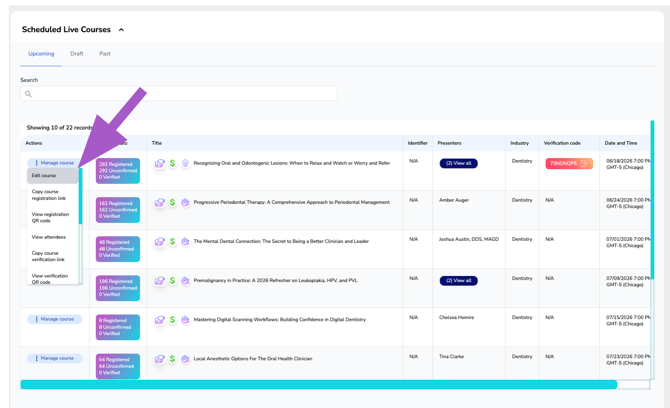
- Locate the course you wish to manage.
- Under the Manage Course action menu, select Edit / View.
- Once inside the Course Wizard, navigate to the Survey Manager step.
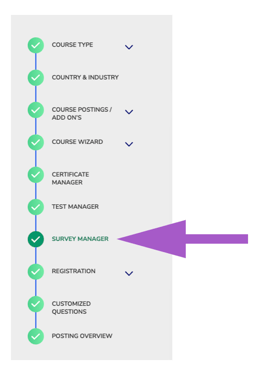
Selecting the Survey Manager step will direct you to the Survey Manager, where you can create, view, edit, and manage surveys associated with your courses.
Tip: Accessing the Survey Manager from the Course Wizard allows you to manage surveys without leaving the course setup process.
Step 2: Edit Survey
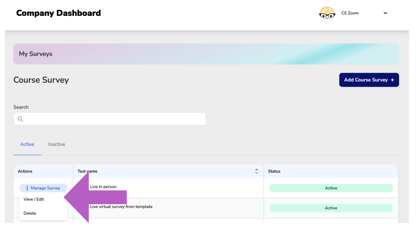
- Locate the survey you want to edit
- Click Manage Survey to expand the dropdown menu
- Select View/Edit.
- Make your updates and click Save.