
Part 1: Where to FIND the 'Manual Upload' Form
Part 2: Filling out 'Manual Upload' Form: Select the type of CE Activity Type to see instructions:
- "Course-Related" CE Activity (lectures or self-paced course)
- "Non-Course related" CE Activity (teaching, volunteering, publishing)
Part 1: Finding the 'Manual upload' Form:
- Log into your CE Zoom account. www.cezoom.com
- From your Professional Dashboard, go to My Certificates located in the navigation menu
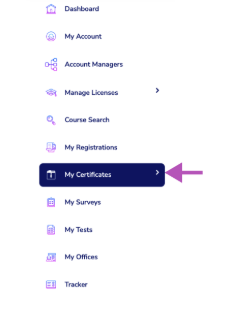
- After selecting My Certificates, you have two options:
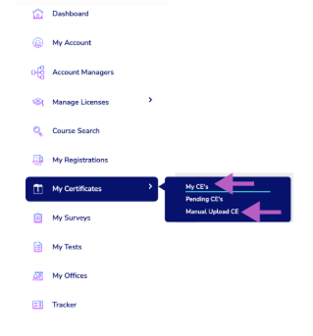
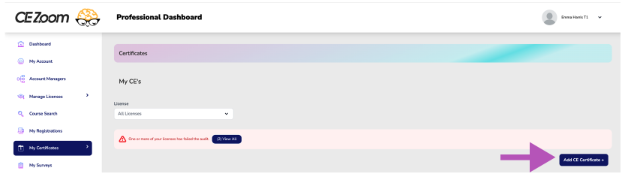
- Choose My CE’s to view your existing CE and click Add CE Certificate to upload a new one.
- Or, select Manual Upload CE to go directly to the upload form.
- Choose My CE’s to view your existing CE and click Add CE Certificate to upload a new one.
- The Manual Upload CE process uses a 6-step wizard form to guide you through adding your certificate. You’ll complete each section, one step at a time:
"Course Related" CE Activity
Definition: A structured, formal learning activity often lecture based in a live, virtual or on demand format that follows learning objectives and taught by qualified instructor(s), which at the conclusion of the active will issue to participants a certificate of verification or completion.
Before starting: Ensure your CE Certificate is in an eligible upload-able format such as a .PDF, .JPeg (picture), Screenshot, Scanned..etc. and easily accessible from a computer.
To FIND the 'Manual Upload' Form refer to above Part 1: Finding the 'Manual Upload' Form
Note: The Manual Upload CE process uses a 6-step wizard form to guide you through adding your certificate. You’ll complete each section, one step at a time:
- Allocate to a License
- Complete Basic Info
- Select Course Topic & CE Provider
- Enter CE Hours
- Upload Documentation
- Notes (Optional)
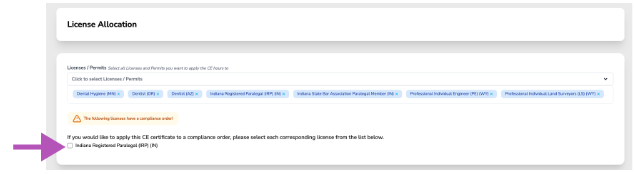
Step 1: License Allocation
Select which license(s) this CE applies to.
-
- Licenses/Permits: Select all you wish to apply the CE hours too.
- Note: If you have a "Compliance order," you’ll be asked if you want to apply this CE to that order. Please note, a single CE cannot be applied to both your renewal requirements and a compliance order for the same license — you will need to choose one.
Step 2: Basic Info
Enter the following course details
-
- Course Title: Enter the title of the course
- Presenter(s): list all presenters that taught the course
- Earned date: Date the CE Activity was completed (should correspond to the date on the CE Certificate)
- Total CE Credits Issued
- Answer "No" to the Toggle Button Question "Are you entering a Non-Course related CE opportunity?" This ensure that you are entering a "Course-Related" CE Activity. If this is NOT a course-related CE Activity, go to: How to enter a "Non-Course Related" CE activity.
- CE hours Info: Enter the total CE hours earned for this course.
- Live courses: enter the date the course was offered
- Self-study course: enter the date you complete and passed the test
- CE Credit Types: If you hold licenses in industries that track different types of CE credits, you’ll be asked to select the appropriate credit type for each industry that requires this distinction.

- Educational type: choose either Live or Self-Study
- Educational method: Choose the method that best describes how this activity was delivered
Step 3: Topics & Providers
Choose the relevant CE topic and provider
-
-
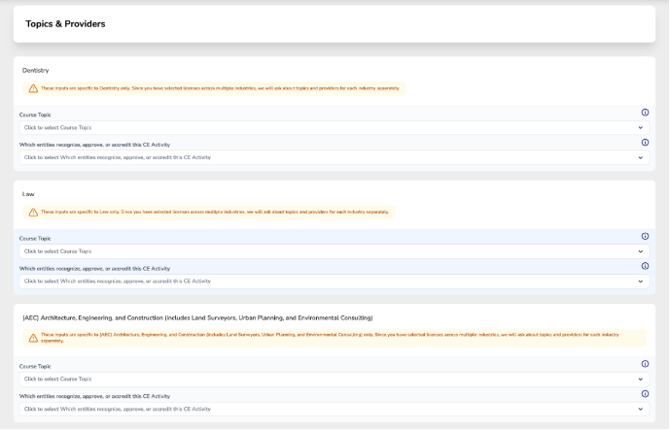
Topics: Select the course topic that best describes the course or opportunity you completed.
If multiple topics are selected, the next step will ask you to divide the total CE hours according to the time spent learning each topic to ensure accurate tracking of renewal requirements per topic.
-
Providers: Which entities recognize, approve, or accredit this CE Activity
-
If you hold licenses across multiple industries, you’ll be asked to select topics and providers separately for each industry.
This is because each industry has its own unique set of topics and approved providers, and these selections ensure your CE credits are properly categorized and applied to the correct industry's tracking and compliance requirements.
Step 4: CE Hours Info
Confirm number of CE hours earned.
This step helps ensure your earned CE hours are correctly recorded and applied to your licenses and topics. Here’s how it works:
-
- If you selected only one topic, this step simply asks you to confirm the total hours earned for that topic.
- If you selected multiple topics, you’ll be asked to allocate the total hours earned (entered in the Basic Info step) across each of the selected topics. The total between all the topics must equal the inputted total hours under the basic requirements per industry.
For Users with Licenses in Multiple Industries
If you hold licenses across multiple industries, you will need to repeat this process for each industry — confirming or allocating hours for each one separately.
⚠️ Important: CE hours are not divided between industries. Each industry is treated independently and each industry receives the full hours issued. This ensures that every industry’s specific tracking and compliance requirements are properly met.
Step 5: Documentation
Upload a PDF copy of your CE Certificate
 To upload multiple pages, please combine them into a single PDF document before uploading.
How to combine multiple PDF documents or pictures into one PDF document to upload as your Certificate of Completion.
Click on the Online PDF Combiner link below. This helpful website will quickly combine your documents.
How to video for the above service.
-
- Certificate of Completion: Is a document awarded to individuals who have successfully completed a continuing education course or program. This certificate typically includes details such as the participant's name, the course title, the number of continuing education units (CEUs) or credit hours earned, the date of completion, and the name of the educational provider and their certifying body. It serves as proof that the individual has met the educational requirements for maintaining licensure.
- Award/Certification Attachment (optional):
An award or certification certificate is an official document recognizing an individual's achievement, competence, or completion of a particular course, program, or requirement.
Award Certificate: This certificate is given to acknowledge and honor an individual's accomplishments, excellence, or contribution in a specific area. It may be awarded for academic achievements, outstanding performance in a competition, or exceptional service in a professional or community context.
Certification Certificate: This certificate verifies that an individual has met specific standards or qualifications set by a certifying body. It often indicates that the person has completed required training, passed examinations, or demonstrated competency in a particular field or skill. Certification certificates are commonly used in professional fields to denote that the holder is qualified to perform certain tasks or roles.
Step 6 Notes
In this step, you can add important details related to the course. We recommend including:
-
- The course overview
- The learning objectives
- Any additional notes you would like a Regulatory Body to utilize in their review if this CE record is ever audited.
- Auditor Notes:
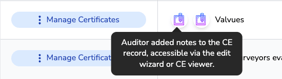
The Auditor Notes section is a read-only field, meaning you cannot add or edit anything in this section. This is where you will see any notes added by the regulatory board if your record is ever reviewed.
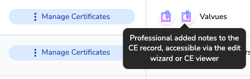
If a record has a note—whether added by you (in the Notes section) or by the regulatory board—a Notes icon will appear next to the record to alert you. This lets you know there’s important information to review.

Adding this information helps ensure your record is complete and audit-ready.
Once finished, click Finish. Your CE certificate will now be stored under My Certificates.
NEXT: How to manually upload a "Non-Course-Related" CE activity.
"Non-Course Related" CE Activity
Before starting: Ensure your CE Certificate is in an eligible upload-able format such as a .PDF, .JPeg (picture), Screenshot, Scanned..etc. and easily accessible from a computer.
Definition: An un-structured activity usually without learning objectives or taught by instructors but is an activity of professional development that a regulatory board may designate as eligible for CE Hours. (examples: Research Hours, Speciality Examinations, Higher Education Semester Hours)
Note: The Manual Upload CE process uses a 6-step wizard form to guide you through adding your certificate. You’ll complete each section, one step at a time:
- Allocate to a License
- Complete Basic Info
- Select Course Topic & CE Provider
- Enter CE Hours
- Upload Documentation
- Notes (Optional)
Step 1: License Allocation
Select which license(s) this CE applies to.
-
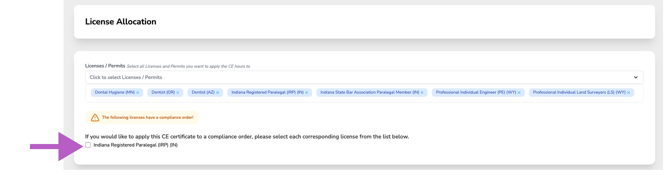
- Licenses/Permits: Select all you wish to apply the CE hours too.
- If you have a "Compliance order," you’ll be asked if you want to apply this CE to that order. Please note, a single CE cannot be applied to both your renewal requirements and a compliance order for the same license — you will need to choose one.
Step 2: Basic Info
Enter the following course details
-
- Course title: Enter the title of the course
- Presenter(s): list all presenters that taught the course
- Earned date: Date the CE Activity was completed (should correspond to the date on the CE Certificate)
- Total CE Credits Issued:
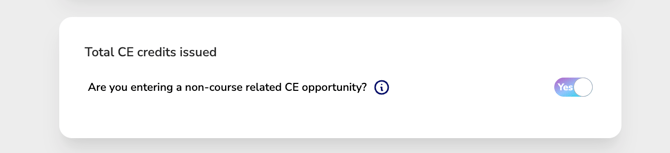
- Answer "YES" to the Toggle Button Question "Are you entering a Non-Course related CE opportunity?" This ensures that you are entering a "Non-Course Related" CE Activity (such as Volunteering, Teaching Hours, Research Hours, Speciality Examinations, Higher Education Semester Hours).
If this is NOT a non-course related CE Activity, go to: How to enter a "Course-Related" CE Activity.
- Answer "YES" to the Toggle Button Question "Are you entering a Non-Course related CE opportunity?" This ensures that you are entering a "Non-Course Related" CE Activity (such as Volunteering, Teaching Hours, Research Hours, Speciality Examinations, Higher Education Semester Hours).
-
- CE Credit Types: If you hold licenses in industries that track different types of CE credits, you’ll be asked to select the appropriate credit type for each industry that requires this distinction.

- Educational type: choose either Live or Self-Study
- Educational method: Choose the method that best describes how this activity was delivered
- CE Credit Types: If you hold licenses in industries that track different types of CE credits, you’ll be asked to select the appropriate credit type for each industry that requires this distinction.
Step 3: Topics & Providers
Course Topics (for Non-Course Related" CE Activities)
-
-
Topics: Select the course topic that best describes the Non-Course Related CE Activity you completed.
***Non-course related CE Activities are limited to just one selection, use the following guide to select the most common 'Non-Course Related' Topics used:
- Documentation | Non-Course Related Requirements:
- Proof of Professional Liability
- Pro-Bono | Volunteering
- Volunteering
- Students | Advanced Education | Schooling
- Advanced Studies (quarter hour)
- Advanced Studies (semester hour)
- Dental Residencies | Internships
- Teaching | Lectures | Presenting
- Academic / Didactic / Classroom Teaching - Full Time
- Academic / Didactic / Classroom Teaching - Part Time
- Clinical Teaching- Full Time
- Clinical Teaching- Part Time
- Teaching or Presenting CE's Initial Presentation
- Teaching or Presenting CE's- Repeated Presentations
- Articles | Publications | Writing
- Authorship of a Paper | Article Publication
- Authorship of a Book Publication
- Attendance at a Dental Board Meeting
- Attendance at a Multi Day Meeting or Convention
- Speciality Exam
- Certification of Recertification from any Specialty Board Approved
- DANB® | Administered Exam With 100 or More Questions
- Documentation | Non-Course Related Requirements:
-
If you allocate a 'Non-Course Related" CE Activity to licenses in states that DO NOT allow for that type of professional development activity to be eligible for CE credit..this action will require you to also enter Hour/Minuets for this record. (see also: Step 4 CE Hour Info)
CE Providers:
-
-
Providers: Which entities recognize, approve, or accredit this CE Activity
- If your are unsure of the provider but confided the regulatory board would approve of the activity, Select the name of your State Regulatory Board
-
If you hold licenses across multiple industries, you’ll be asked to select topics and providers separately for each industry.
This is because each industry has its own unique set of topics and approved providers, and these selections ensure your CE credits are properly categorized and applied to the correct industry's tracking and compliance requirements.

Step 4: CE Hours Info
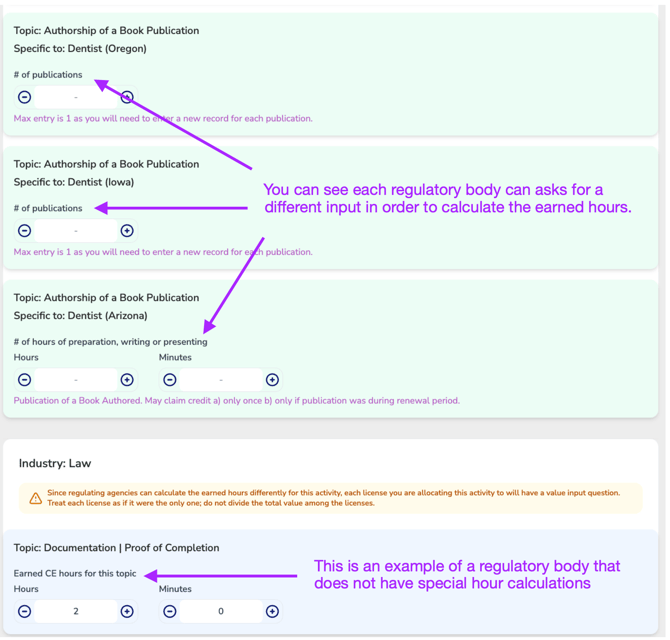
The system will guide you through this step based on the specific rules set by your regulating body.
Here’s how it works:
-
- For licenses where the regulatory body has special rules for converting earned hours into applied hours, the system will ask you a specific question related to that activity. Based on your response, CE Zoom will automatically calculate the applied hours for that license (this calculation will only be visible to Pro & Elite users, basic users will see their inputted value).
- You will be asked to complete this step for each license you are applying the CE record to.
- Treat each license as if it were the only one; do not divide the total value among the licenses.
- For license where the regulatory body DOES NOT have special calculations, or the type of CE Activity selected is not recognized by the state, the system will simply ask you to enter the total earned hours for the activity.
For Users with Licenses in Multiple Industries
If you hold licenses across multiple industries, you will need to repeat this process for each industry — confirming or allocating hours for each one separately.
⚠️ Important: CE hours are not divided between industries or licenses for non-course related CE activities.
Step 5: Documentation
Upload a PDF copy of your CE Certificate
To upload multiple pages, please combine them into a single PDF document before uploading.
How to combine multiple PDF documents or pictures into one PDF document to upload as your Certificate of Completion.
Click on the Online PDF Combiner link below. This helpful website will quickly combine your documents.
How to video for the above service.
-
- Certificate of Completion: Is a document awarded to individuals who have successfully completed a continuing education course or program. This certificate typically includes details such as the participant's name, the course title, the number of continuing education units (CEUs) or credit hours earned, the date of completion, and the name of the educational provider and their certifying body. It serves as proof that the individual has met the educational requirements for maintaining licensure.
- Award/Certification Attachment (optional):
An award or certification certificate is an official document recognizing an individual's achievement, competence, or completion of a particular course, program, or requirement.
Award Certificate: This certificate is given to acknowledge and honor an individual's accomplishments, excellence, or contribution in a specific area. It may be awarded for academic achievements, outstanding performance in a competition, or exceptional service in a professional or community context.
Certification Certificate: This certificate verifies that an individual has met specific standards or qualifications set by a certifying body. It often indicates that the person has completed required training, passed examinations, or demonstrated competency in a particular field or skill. Certification certificates are commonly used in professional fields to denote that the holder is qualified to perform certain tasks or roles.
Step 6 Notes
In this step, you can add important details related to the course. We recommend including:
-
- The course overview
- The learning objectives
- Any additional notes you would like the regulating body to review if this CE record is ever audited.
- Auditor Notes:
The Auditor Notes section is a read-only field, meaning you cannot add or edit anything in this section. This is where you will see any notes added by the regulatory board if your record is ever reviewed.
If a record has a note—whether added by you (in the Notes section) or by the regulatory board—a Notes icon will appear next to the record to alert you. This lets you know there’s important information to review.
 .
. 
Adding this information helps ensure your record is complete and audit-ready.
Once finished, click Finish. Your CE certificate will now be stored under My Certificates.