
Steps to Edit a Manually Added CE Certificate:
-
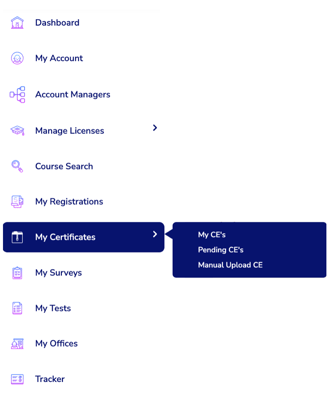
From your Dashboard, hover over “My Certificates” in the left navigation menu to expand the submenu.
-
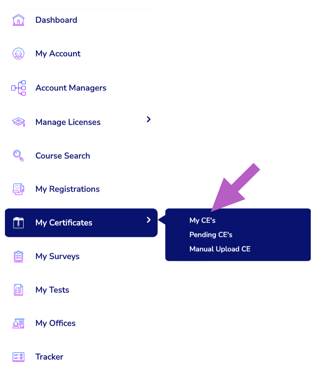
Click “My CE's.”
-
To narrow your search:
-
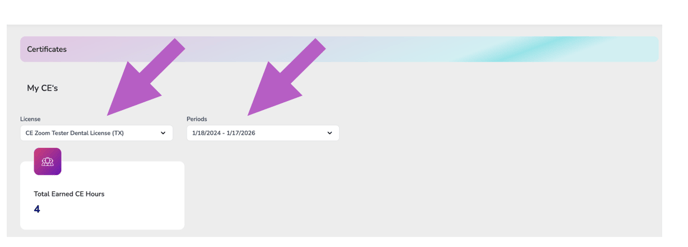
Select the license and renewal period the CE was earned in.
-
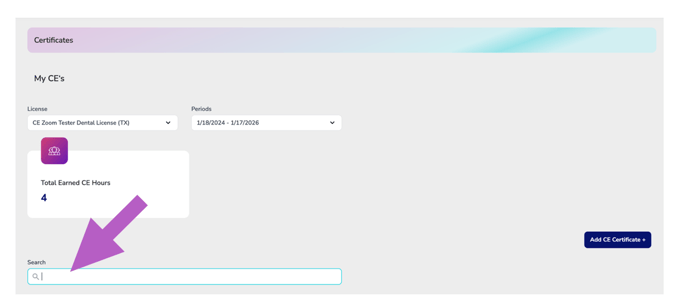
Or use the search bar with course keywords.
-
-
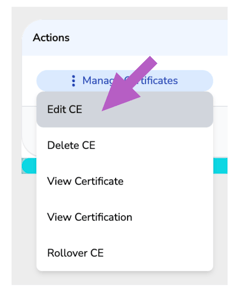
In the Actions column next to the CE you want to update, hover over “Manage Certificates” and select “Edit CE.”
-
Make any necessary updates to the certificate fields.
-
Click Save to apply your changes.
For help understanding each input field, refer to the article: How to Manually Upload a Completed CE Course Certificate.