
Overview:
The Delete License option allows you to permanently remove a license from your CE Zoom account. This action should be used carefully, as it erases the license along with its associated renewal periods and tracking data. In most cases, it is better to inactivate a license rather than delete it, so your history remains intact.
Steps to Delete a License
-
Navigate to the License Manager
-
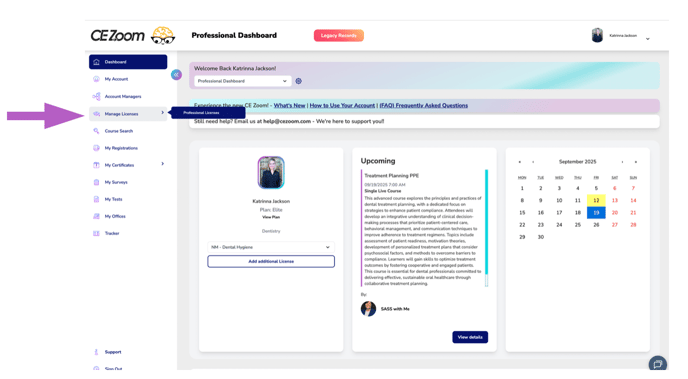
From your navigation menu, hover over Manage Licenses.
-
Click Professional Licenses to open your License Manager page.
-
-
Select the License to Delete
-
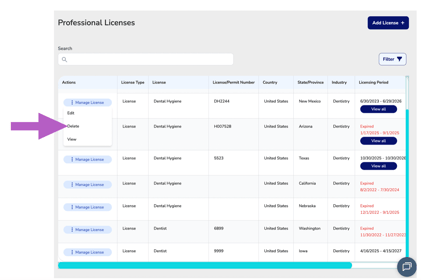
Find the license you wish to delete.
-
Hover over Manage License to expand the dropdown menu.
-
Select Delete License.
-
-
Confirm Deletion
-
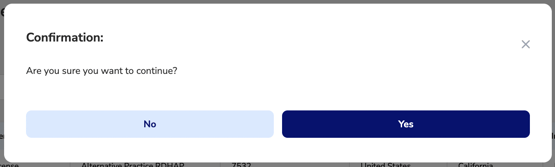
A confirmation pop up will appear.
-
Click Yes to confirm, or No to cancel.
-
-
-
If a license is attached to any CE records, you will be blocked from deleting it and will see a Failed notice:
“License cannot be deleted due to certificates, audits, or compliance orders.”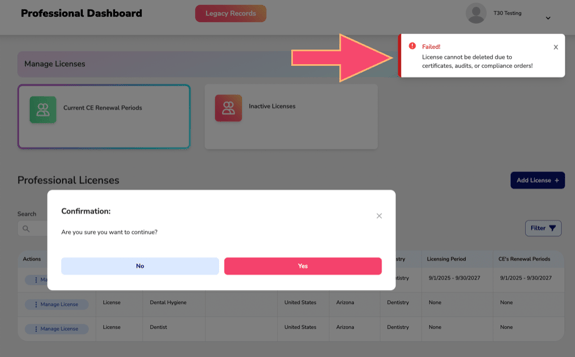
-
To proceed with deletion, you must first edit each CE record associated with that license and remove the license assignment.
-