
Steps to Apply a CE Certificate to Another License:
-
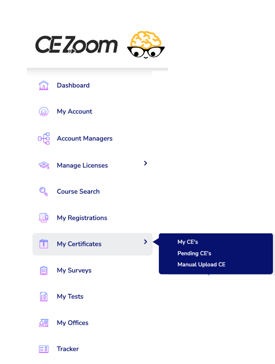
From your Dashboard, hover over My Certificates in the left-hand navigation to expand the menu.
-
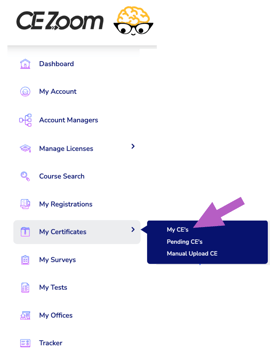
Click My CE’s.
-
Locate the CE record you want to apply to another license:
-
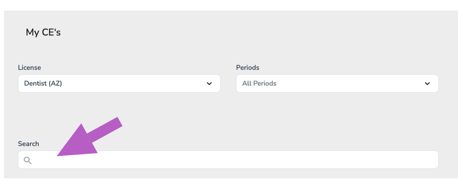
Use the License and Period filters to narrow your results.

-
Or use the search bar to find the record by keyword.
-
-
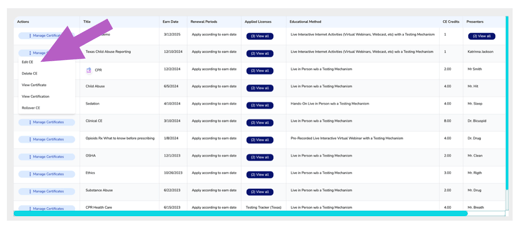
In the Actions column, hover over Manage Certificates to expand the drop-down menu and click Edit CE.
-
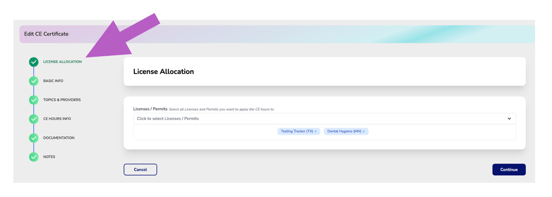
The Edit CE Wizard will open. If you are not automatically directed to Step 1: License Allocation, click “License Allocation” from the progress navigation menu on the left to access this step.
-
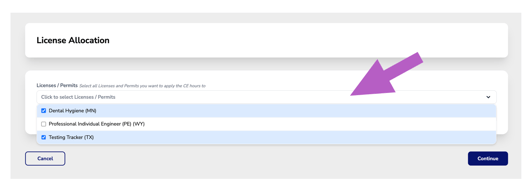
Click inside the Licenses/Permits field to view your available licenses.
-
Only select licenses you wish to apply the CE credit to.
-
Click Continue.
-
Complete any additional fields required for the newly selected license(s), if applicable.
-
Continue through the remaining steps and click Finish to save your updates.