Master Repeated Courses
The Master Repeated Courses section of the Company Dashboard is where you'll manage the reusable course templates that serve as the foundation for your recurring course offerings. Instead of creating the same course multiple times, a single Master Repeated Course allows you to schedule multiple course dates while maintaining consistent course information, CE settings, certificates, surveys, tests, and registration options.
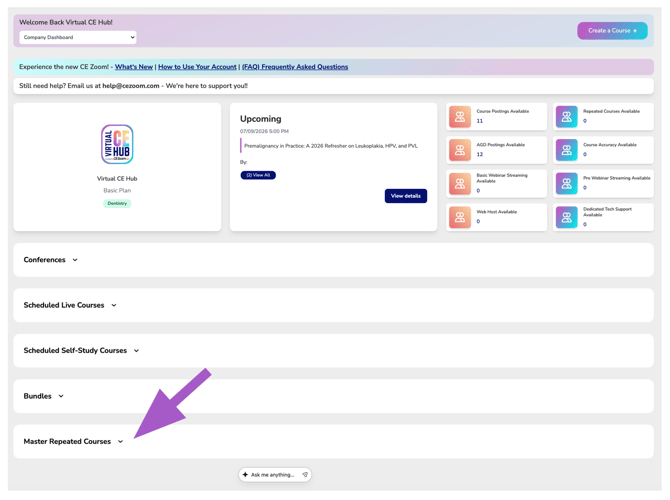
Using & Understanding Master Repeated Courses
To begin, your company creates a Master Repeated Course, which acts as the main course template. From there, you’ll create presenter templates—this is where you define which presenters will be delivering the course. Each presenter is then assigned a unique, reusable registration link that displays all of their available course dates, along with a single verification code valid for the entire one-year active period.
Once presenter templates are in place, you can schedule individual course offerings by date and presenter. Presenters have the flexibility to share either their generic registration link (which lists all their upcoming dates) or a specific link for a particular course date.
This format is ideal for frequently repeated sessions—such as lunch-and-learns—and simplifies both promotion and administration by reducing the need for multiple course setups, varying links, and changing verification codes.
Master Repeated Course Status Tabs
This section displays all of your company’s Master Repeated Courses, organized into three tabs based on their current status. Draft, Posted, and Expired.
Posted
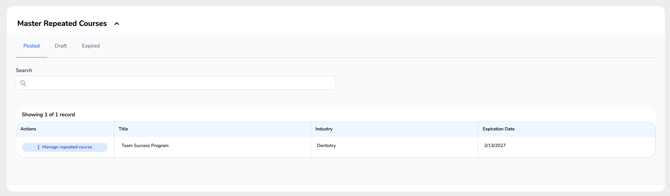
The Posted tab displays all active Master Repeated Courses that are available for scheduling individual course dates.
A Master Repeated Course must be completed and posted before scheduled course dates can be created. Posting confirms that all required course information has been entered and that the master course is ready to be used as the foundation for future offerings.
Once posted, you can create scheduled course dates that support both pre-registration and regular registration, allowing attendees to register for each course offering while maintaining consistent course information across all scheduled sessions.
Draft
The Draft tab contains Master Repeated Courses that have been started but have not yet been posted.
Draft courses can continue to be edited until they are complete and ready to publish.
Expired
The Expired tab displays Master Repeated Courses that have reached their expiration date.
Expired master courses can no longer be used to create new scheduled course dates unless they are renewed or updated.
Search
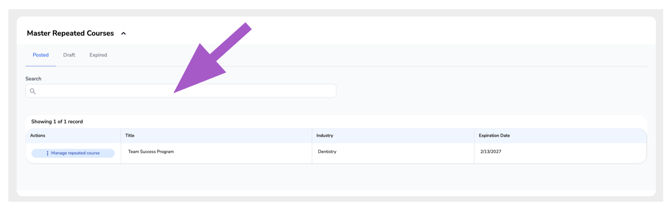
Use the Search field to quickly locate a Master Repeated Course by title.
As you type, the list automatically filters to display matching courses.
Course Table
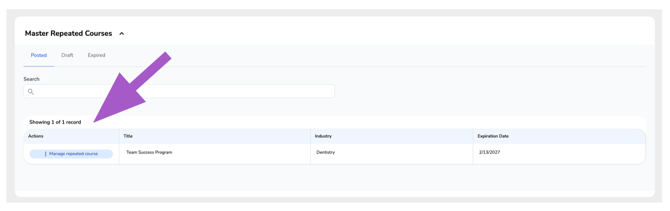
Displays all Master Repeated Courses that match the currently selected status tab (Posted, Draft, or Expired). Each row represents a single Master Repeated Course and provides quick access to key course information and available management actions.
Title
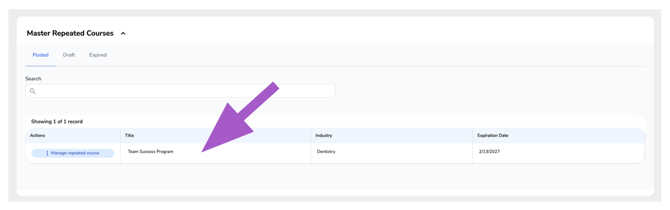
Displays the name of the Master Repeated Course.
Industry
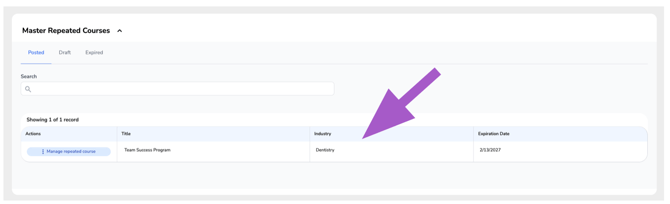
Displays the industry selected for the course. This helps categorize the course, target the intended audience, and improve how the course appears in searches and course listings.
Expiration Date
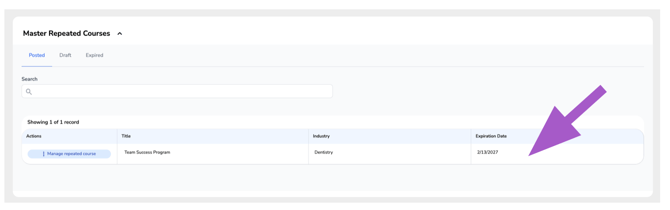
Displays the date the Master Repeated Course expires.
Once expired, the course will move to the Expired tab and cannot be used to create additional scheduled course dates until renewed.
Actions - Manage Repeated Course
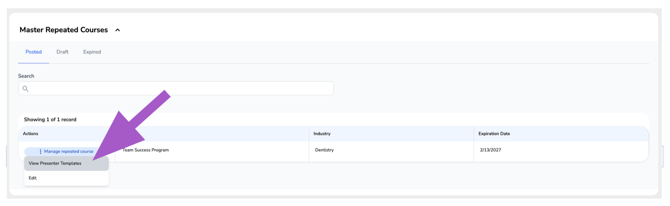
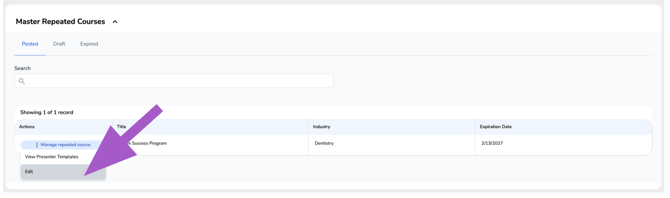
The Manage Repeated Course menu provides quick access to the management tools that can be performed on the selected Master Repeated Course.
Available actions include:
View Presenter Templates
Opens the Presenter Templates associated with the selected Master Repeated Course.
Presenter Templates allow you to manage presenter information that can be reused across all scheduled course dates created from the master course, eliminating the need to recreate presenter information for every offering.
In addition to managing presenter information, Presenter Templates are where individual scheduled course dates are created and managed. From this section, you can schedule new course offerings, assign presenters, and maintain all scheduled sessions associated with the Master Repeated Course.
Edit
Opens the Course Wizard for the selected Master Repeated Course.
From here you can update course information, CE settings, certificates, surveys, tests, registration options, presenter templates, and other shared course details.
Editing Restrictions
Master Repeated Courses can be edited until certain milestones are reached. As the course progresses, specific fields become locked to preserve the integrity of the course and ensure compliance with accrediting requirements.
After a Scheduled Course Has Been Verified
Once an attendee has verified a scheduled course to receive CE credit, certain core course information becomes locked, including:
- Course Title
- Industry
- Topics
- Other core course identification fields
These fields are locked to ensure attendees receive credit for the same course that was originally offered.
After a Course Has Been Approved or Accredited
Once a course has been approved or accredited, additional fields may become locked to comply with accrediting agency requirements and preserve the approved course information.
These restrictions help ensure the course continues to meet all accreditation requirements and prevent changes that could affect the course's approved status.
Note: The specific fields that become locked depend on the course type, approval status, and accrediting requirements.