
How to update status of a Provider Statement & Logo in CE Zoom
⚠️ This action can only be completed from the Navigation Menu Access to the Certificate Manager
Why Update the Status of a Provider Approval?
If you no longer hold a specific provider approval, you should inactivate it. This helps in two key ways:
- Streamlines Certificate Creation – Inactivating removes outdated approvals from the selection options when creating and maintaining CE certificates, reducing errors and confusion.
- System Management – It signals to CE Zoom that you are no longer actively managing this provider approval status, ensuring accurate tracking and compliance.
Keeping your provider status updated ensures a smooth and efficient certification process while maintaining compliance with approval requirements.
- Log into your Company CE Zoom account (www.cezoom.com)
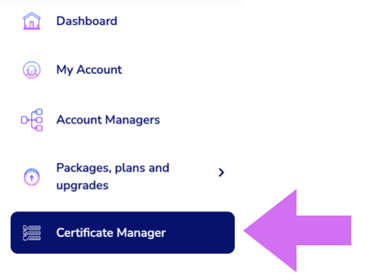
- From the Navigation Menu click on Certificate Manager
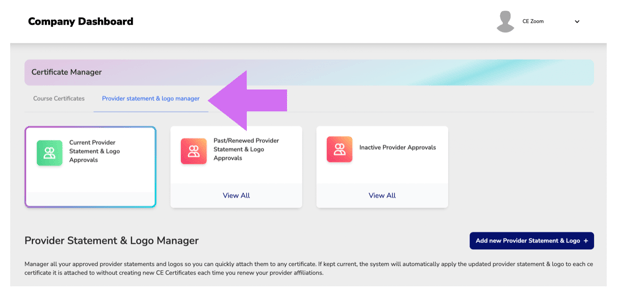
- Click on the Provider statement & logo manager filter at the top of the Certificate Manager Page
-
From the Provider Statement & Logo Manager page
-
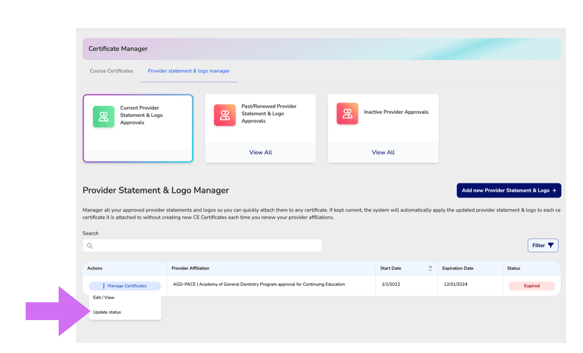
Locate the approval you want to update.
-
Click Manage Approval to expand the dropdown menu.
- Select Update status
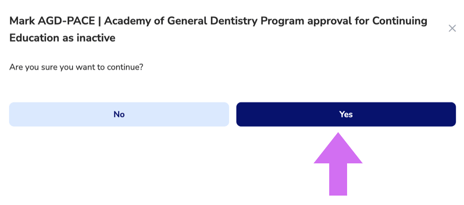
- Click Yes to change the status
-