
Renewing
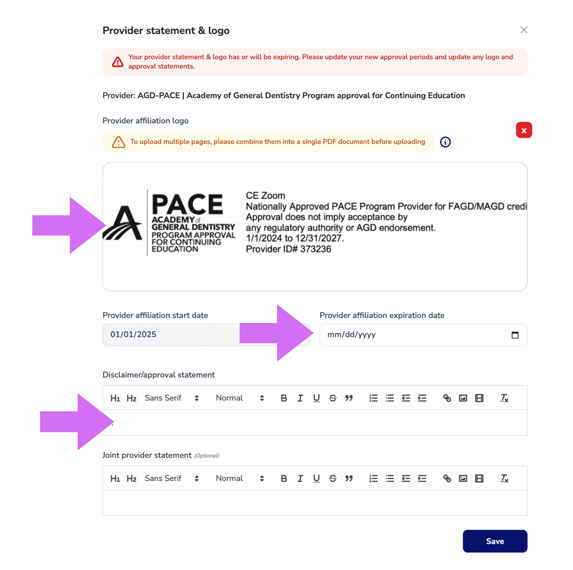
By default, CE Zoom will automatically retain the most recently uploaded logo. If your logo remains unchanged, no action is needed. However, if your approval requires a new logo:
-
- Remove the existing logo by clicking the red ❌ next to the current upload.
- Upload the new logo by selecting the updated file.
- Enter the new expiration date for the approval period.
- The start date is auto-filled based on the expiration date of the previous renewal cycle and cannot be edited during the renewal process.
- If there has been a gap in your approval, you can edit the start date after saving the renewal period. This allows you to correct an error and ensure the new start date is set after the expiration of the last recorded approval period.
- Update the disclosure/approval statement, if applicable.
- Click Save to apply the changes.