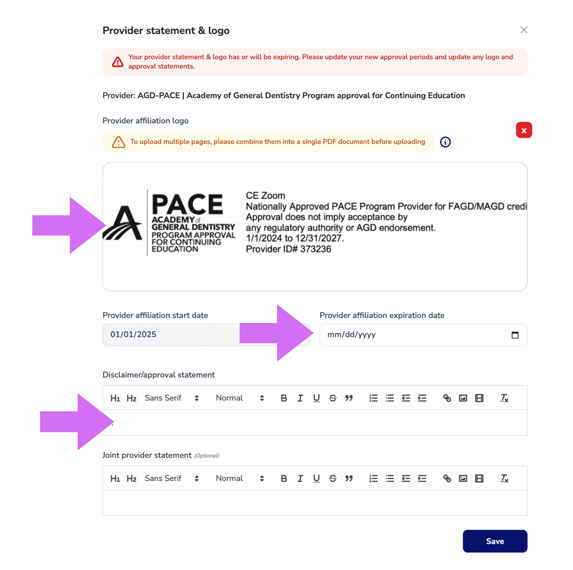
Editing your Provider Statement & Logo
-
Log in to your Company CE Zoom account (www.cezoom.com)
-
Provider Statements and Logos can be managed from two access points within CE Zoom.We recommend using the main CE Certificate Manager from the navigation menu for ongoing management since it provides access to all provider statements and logos in one location. However, if needed, you can also add, update, renew, or edit provider statements and logos directly from within the Course Creation Wizard.
-
-
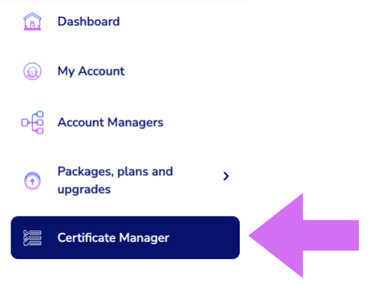
From the Navigation Menu, click on Certificate Manager
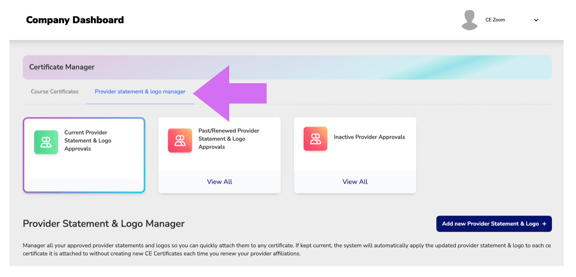
- Click on the Provider statement & logo manager filter at the top of the Certificate Manager Page
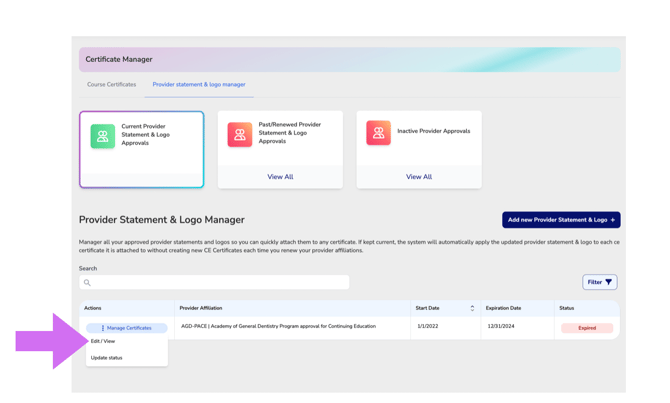
- From the Provider Statement & Logo Manager page
- locate the approval you want to update.
- Click Manage Approval to expand the dropdown menu.
- Select Edit/View to open the editing options for the provider statement and logo.
- Click on the Provider statement & logo manager filter at the top of the Certificate Manager Page
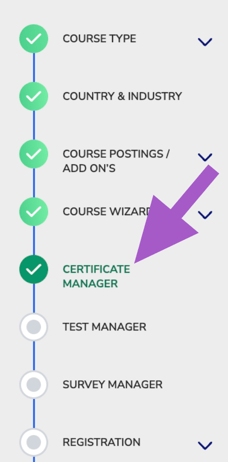
- From inside the course wizard, navigate to the Certificate Manager step
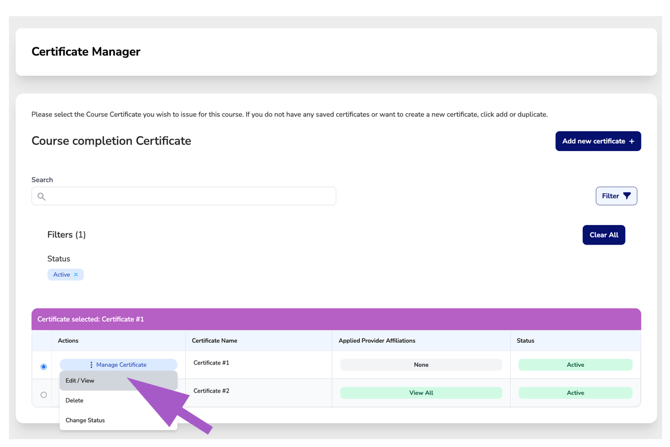
- Click Manage Certificate for the CE Certificate associated with the provider statement or logo you want to update, then select Edit/View.
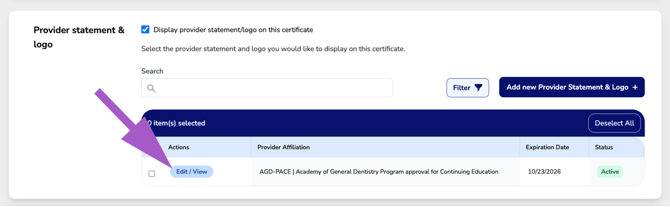
- Scroll down to the Provider Statement & Logo section. Ensure the Display Provider Logo & Statement is checked to expand and access the Provider Statement & Logo Manager and click Edit/View.
- Click Manage Certificate for the CE Certificate associated with the provider statement or logo you want to update, then select Edit/View.
-
Renewing
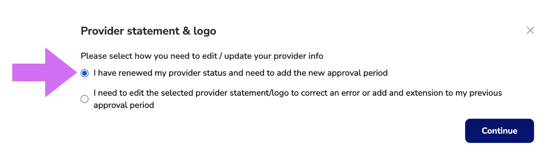
- Select "I Have Renewed My Provider Status": This option is for when you have renewed your provider status and need to add a new approval period. It is important to maintain separate records for each renewal rather than editing previous approval periods to adjust dates. The system references each renewal period individually to ensure the correct logo and approval statement are applied to certificates issued during that timeframe.
- By default, CE Zoom will automatically retain the most recently uploaded logo. If your logo remains unchanged, no action is needed. However, if your approval requires a new logo:
- Remove the existing logo by clicking the red ❌ next to the current upload.
- Upload the new logo by selecting the updated file.
- Enter the new expiration date for the approval period.
- The start date is auto-filled based on the expiration date of the previous renewal cycle and cannot be edited during the renewal process.
- If there has been a gap in your approval, you can edit the start date after saving the renewal period. This allows you to correct an error and ensure the new start date is set after the expiration of the last recorded approval period.
- Update the disclosure/approval statement, if applicable.
- Click Save to apply the changes.