
Editing your Provider Statement & Logo
-
Log in to your Company CE Zoom account (www.cezoom.com)
-
Provider Statements and Logos can be managed from two access points within CE Zoom.We recommend using the main CE Certificate Manager from the navigation menu for ongoing management since it provides access to all provider statements and logos in one location. However, if needed, you can also add, update, renew, or edit provider statements and logos directly from within the Course Creation Wizard.
-
-
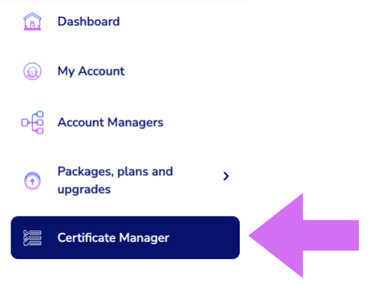
From the Navigation Menu, click on Certificate Manager
- Click on the Provider statement & logo manager filter at the top of the Certificate Manager Page
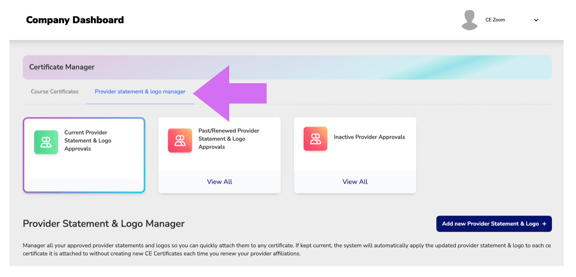
- From the Provider Statement & Logo Manager page
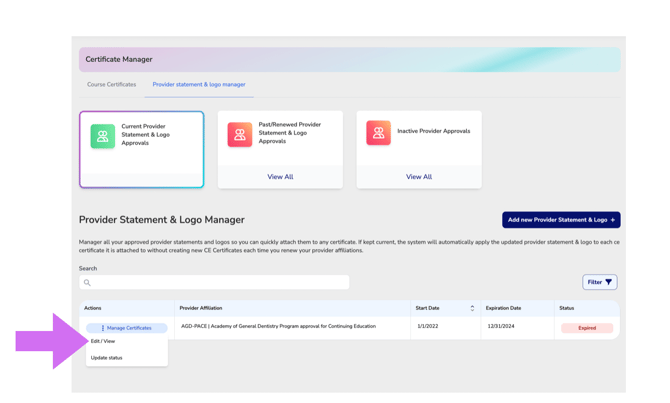
- locate the approval you want to update.
- Click Manage Approval to expand the dropdown menu.
- Select Edit/View to open the editing options for the provider statement and logo.
- Click on the Provider statement & logo manager filter at the top of the Certificate Manager Page
- From inside the course wizard, navigate to the Certificate Manager step
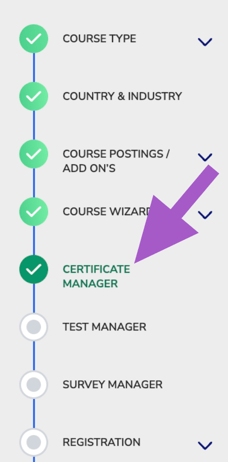
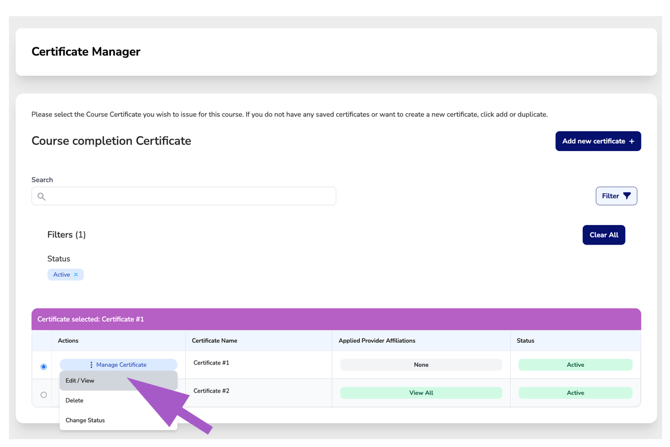
- Click Manage Certificate for the CE Certificate associated with the provider statement or logo you want to update, then select Edit/View.
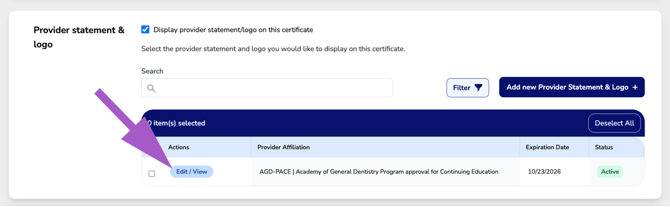
- Scroll down to the Provider Statement & Logo section. Ensure the Display Provider Logo & Statement is checked to expand and access the Provider Statement & Logo Manager and click Edit/View.
- Click Manage Certificate for the CE Certificate associated with the provider statement or logo you want to update, then select Edit/View.
-
Editing
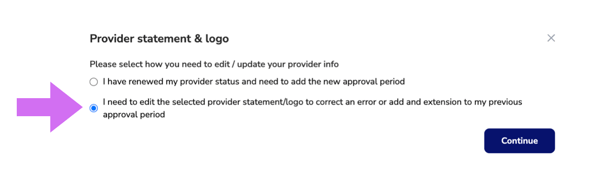
- Select I need to edit the selected provider statement: This option is for correcting an error in the selected provider statement/logo or for adding an extension to your previously approved period. Do not use this option for a new renewal period. If you have received a new renewal, you should select the other option " I have renewed my provider status and need to add a new approval period". (How to renew my provider status)
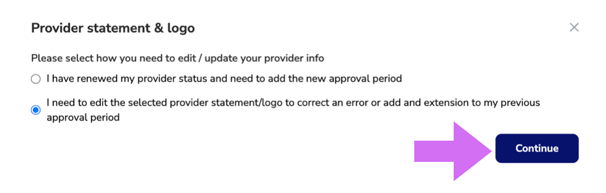
- Click continue
-
Editing your Provider Statement & Logo
Important Before Editing.
⚠️ Important: Editing is Only for Corrections
Use Edit only to correct errors or update information related to the existing approval period. If your provider approval has been renewed, do not update approval dates by editing this record. Instead, create a renewal period within CE Zoom so the system can automatically apply the correct provider statement and logo based on approval dates and course earn dates.
Editing approval dates instead of creating a renewal period can cause historical courses and certificates to lose the correct provider statements and logos associated with previous approval periods.
Updating an Existing Provider Record
Review and update the provider information as needed. Once all changes are complete, click Save to apply your updates.
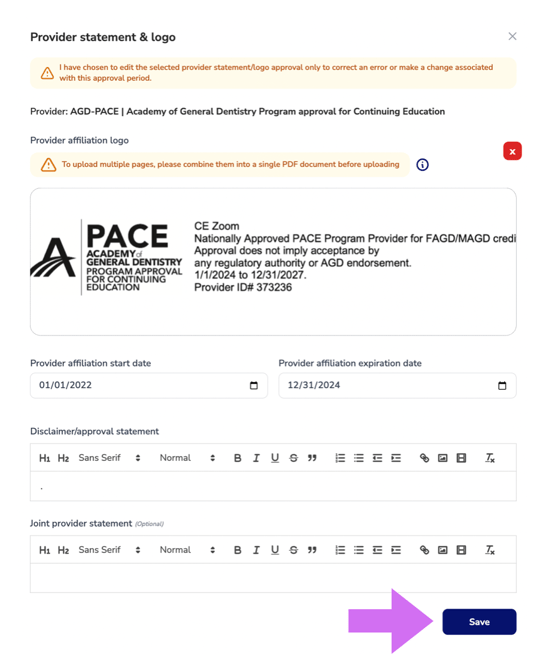
Field Overview
Provider (Cannot Be Changed)
The selected provider cannot be changed once the provider record has been created. If the incorrect provider type or approval was selected by mistake, inactivate the existing provider record and create a new provider record with the correct information
Provider Affiliation Logo
Upload or replace the provider logo that should appear on certificates when this provider approval is applied. Be sure to upload the logo associated with the selected approval period dates so CE Zoom can correctly apply the appropriate provider logo and approval statement based on active dates and course earn dates.Provider Affiliation Start Date
Enter or update the date the provider approval period begins. This date is used when determining if the provider approval is active for course earn dates.⚠️ Important: If your provider approval has been renewed, do not update the dates on this record. Instead, create a new renewal period to maintain historical approval periods and accurate certificate management.
Provider Affiliation Expiration Date
Enter or update the provider approval expiration date. CE Zoom uses this date to determine when provider statements and logos should no longer be automatically applied.Disclaimer / Approval Statement
Enter or update the official provider approval statement or disclaimer that should appear on certificates when this provider approval is used.Joint Provider Statement (Optional)
If applicable, enter a joint provider statement that should appear alongside the provider approval information on certificates.⚠️ Important: Unless all certificates associated with this provider approval require the same joint provider statement, we do not recommend managing joint provider statements here. Statements entered in this field will display on all certificates associated with this provider approval record.
Save Button
Once all updates are complete, click Save to apply changes to the provider record.