
How to add a Provider Statement & Logo on CE Zoom
- Log into your Company CE Zoom account (www.cezoom.com)
- Provider Statements and Logos can be managed from two access points within CE Zoom.
We recommend using the main CE Certificate Manager from the navigation menu for ongoing management since it provides access to all provider statements and logos in one location. However, if needed, you can also add, update, renew, or edit provider statements and logos directly from within the Course Creation Wizard.
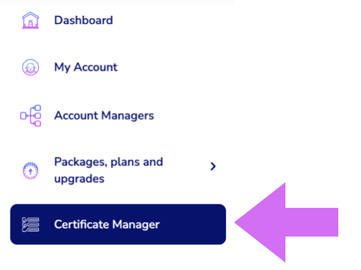
- From the Navigation Menu click on Certificate Manager
- Click on the Provider statement & logo manager filter at the top of the Certificate Manager Page
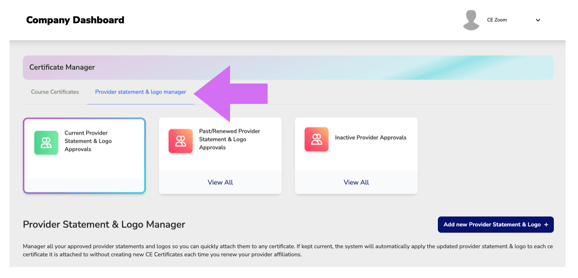
- Click on Add new Provider Statement & Logo +
- Click on the Provider statement & logo manager filter at the top of the Certificate Manager Page
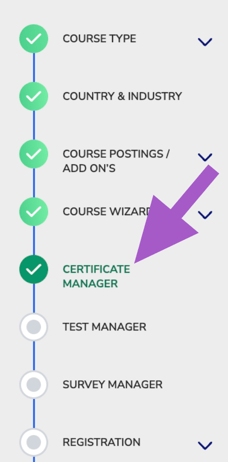
- From inside the course wizard, navigate to the Certificate Manager step
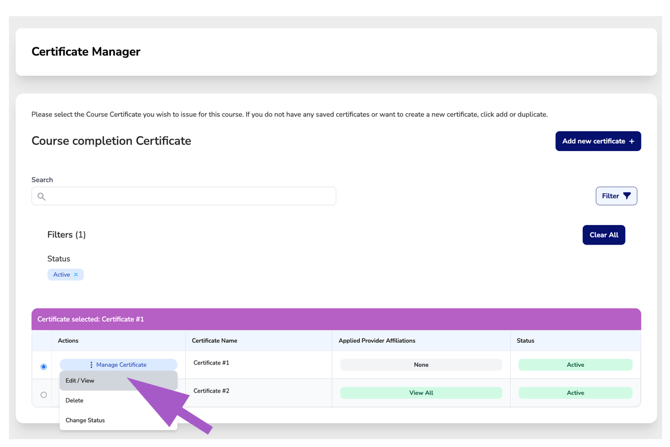
- Click Manage Certificate for the CE Certificate associated with the provider statement or logo you want to update or where you need to add a new provider, then select Edit/View.
- Scroll down to the Provider Statement & Logo section. Ensure Display Provider Logo & Statement is checked to expand and access the Provider Statement & Logo Manager.
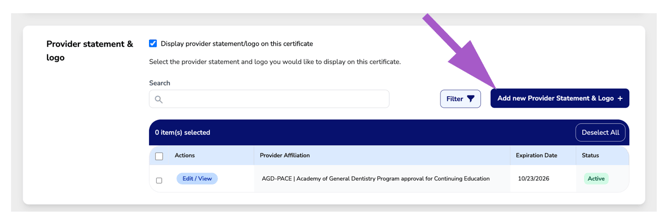
- Click Manage Certificate for the CE Certificate associated with the provider statement or logo you want to update or where you need to add a new provider, then select Edit/View.
- From the Navigation Menu click on Certificate Manager
- Fill out the form
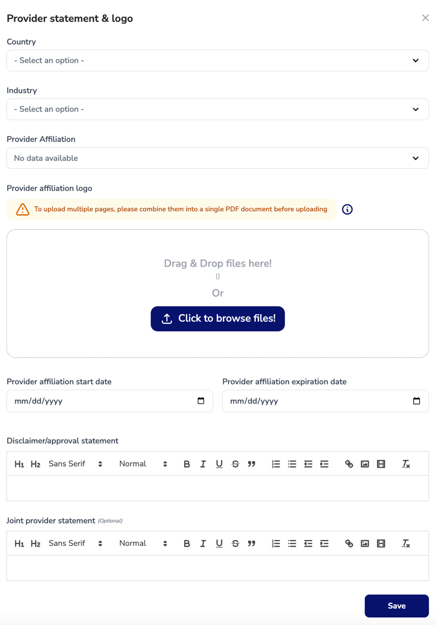
- Country: Select the country where the approval was granted. (Single select)
- Industry: Select the industry associated with the approval. (Single select)
- Provider Affiliation: Select from the list of recognized providers. If you don’t see your approval listed, let us know at help@cezoom—we’d be happy to add it!
- Provider Affiliation Logo: Upload the required affiliation logo for use on your CE certificates, as specified by the accrediting organization. If there are specific guidelines on logo placement or approval statements, we recommend designing the exact layout and uploading a screenshot or image of how it should appear on your course certificates.
- Provider Affiliation Start Date: Enter the start date of the current renewal period you are adding.
- Provider Affiliation Expiration Date: Enter the expiration date of the current approval period.
- Disclaimer/Approval Statement: This statement will appear to the left of the uploaded provider logo image as described in (d). Enter the required disclaimer or approval statement as specified by the accrediting organization for use on CE certificates. If your uploaded logo already includes the approval statement as suggested in instructions (d), leave this field blank.
- Joint Provider Statement (Optional): Enter the required joint provider statement if applicable, as specified by the accrediting organization for use on CE certificates. Please note: If you add a joint provider statement here, it will appear on all certificates. This may be best managed during the CE certificate creation process. How to add a CE Certificate.
- Click save.