
Employee Statistics combines workforce visibility with license management in one centralized dashboard. Organized by profession, it allows organizations to quickly identify which employees hold specific professional licenses, understand workforce distribution across all offices, and identify qualified staff who may be available to help fill scheduling gaps or support other locations when needed.
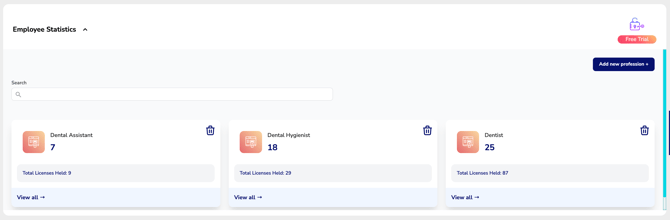
Statistics are grouped by profession, making it easy to understand workforce distribution and license activity across your organization.
Each profession appears as an individual dashboard card displaying employee and license totals, along with quick access to employee records for that profession.
How Employee Statistics Work
Employee Statistics displays information only for professions your organization has chosen to monitor.
Each profession card summarizes:
- Number of employees within the profession.
- Total monitored licenses held by those employees.
- Quick access to employee records.
- Options to add or remove professions from monitoring.
Understanding Employee Counts
The employee count represents the number of individual employees connected to your organization within the selected profession.
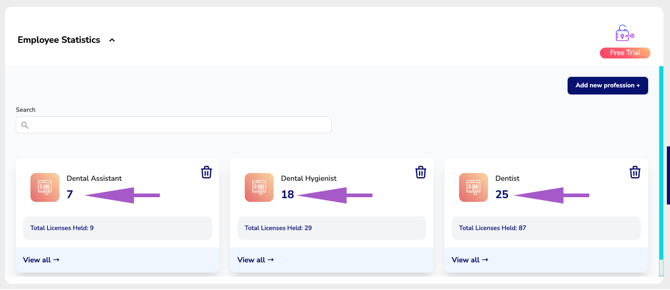
Each employee is counted only once per profession, regardless of how many licenses they hold for that profession.
Example #1
An employee holds:
- Arizona Dentist License
- Colorado Dentist License
- Texas Dentist License
The statistics will display:
Employees: 1
Total Licenses Held: 3
Example #2
An employee holds:
- Arizona Dental Hygienist License
- Colorado Dentist License
- Texas Dentist License
The statistics will display:
Dentist Profession
- Employees: 1
- Total Licenses Held: 2
Dental Hygienist Profession
- Employees: 1
- Total Licenses Held: 1
Why?
The employee is counted once within each profession they hold, while the Total Licenses Held reflects the number of monitored licenses associated with that profession.
Understanding Total Licenses Held
The Total Licenses Held statistic displays the number of licenses your organization has chosen to actively monitor.
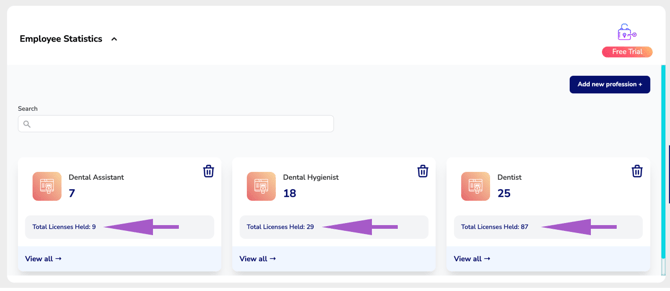
If an employee holds multiple licenses within the same profession, the employee is counted once for that profession, while each monitored license contributes to the Total Licenses Held.
If your organization chooses to monitor only certain licenses, only those monitored licenses will be included in the license total.
Example
An employee holds:
- Arizona Dentist License
- Colorado Dentist License
- Texas Dentist License
Your organization has chosen to monitor only the Arizona and Colorado Dentist licenses.
The statistics will display:
- Employees: 1
- Total Licenses Held: 2
Although the employee holds three Dentist licenses, only the two monitored licenses are included in the Total Licenses Held count. The employee count remains 1 because each employee is counted only once per profession.
Search
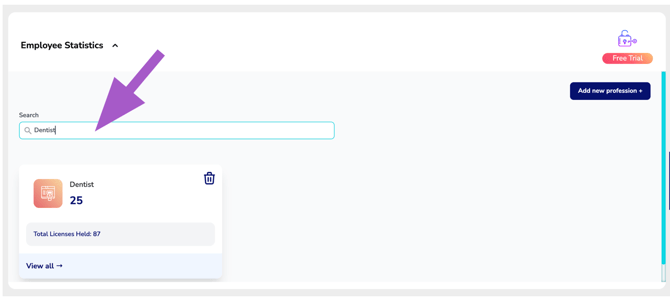
Use the Search field to quickly locate a profession.
As you type, the list automatically filters to display matching professions.
View All
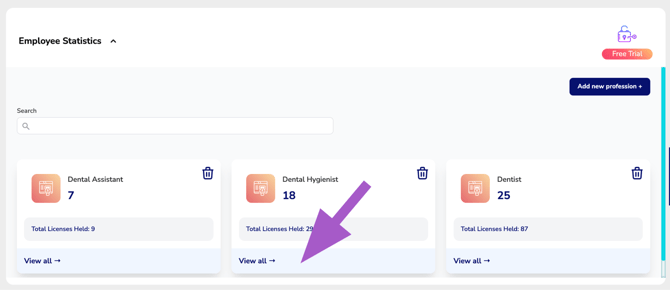
Selecting View All opens a detailed list of every employee currently being monitored within the selected profession.
From here, you can quickly review each employee's license type, CE renewal date, license expiration date, and access additional management actions.
Add New Profession
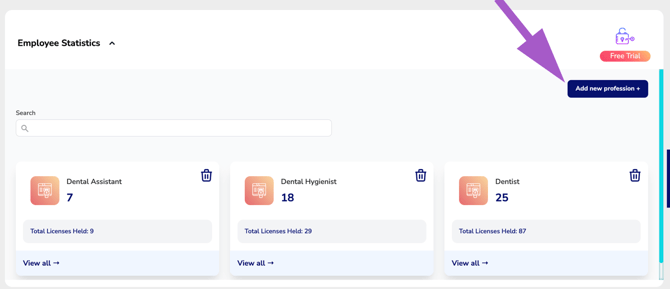
Select Add New Profession to begin monitoring another profession.
After adding a profession, it will appear within Employee Statistics once employees with monitored licenses exist for that profession.
Remove a Profession
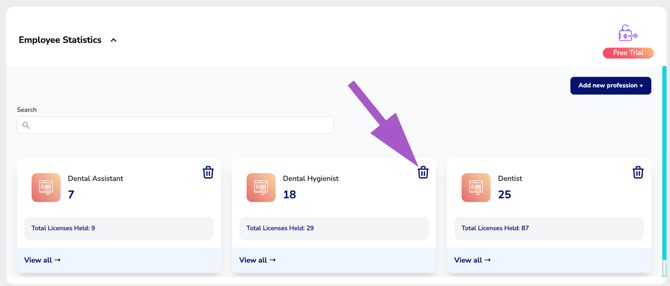
To stop monitoring a profession, click the Trash icon on the profession card.
Removing a profession removes it from your Employee Statistics dashboard but does not delete employee records or license information from CE Zoom.
Best Practices
To keep Employee Statistics accurate:
- Monitor only the professions relevant to your organization.
- Periodically review monitored professions.
- Remove professions that are no longer needed.
- Use View All to quickly identify employees within each profession and verify license assignments.
Summary
Employee Statistics provides a centralized overview of your monitored workforce, helping organizations quickly understand employee distribution by profession, track monitored licenses, and access employee records with just a few clicks. It offers an efficient way to monitor licensing activity while maintaining visibility into the professionals and credentials that matter most to your organization.