
Understanding the Certificate Manager Screen from the Navigation Menu
-
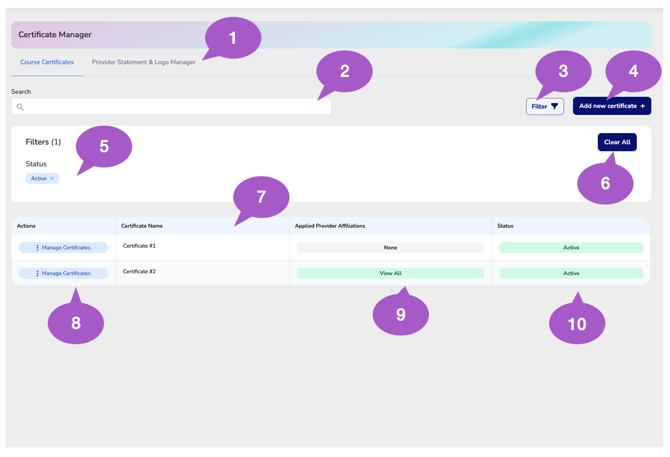
Certificate Manager Tabs
Use the Certificate Manager tabs to switch between Course Certificates and the Provider Statements & Logo Manager.
Course Certificates – Create, edit, and manage the certificate templates that can be assigned to your courses.
Provider Statements & Logo Manager – Create and manage the provider statements and logos that can be applied to your CE certificates.
The tabs allow you to quickly navigate between certificate templates and the branding elements used on those certificates without leaving the Certificate Manager. -
Search Certificates
Use the search bar to quickly locate certificates by name or keyword.As you type, the certificate list automatically updates, making it easy to find the certificate you're looking for.
-
Filter Certificates
Click Filter to narrow your certificate list based on available filtering options. -
Add New Certificate
Select Add New Certificate to create a new CE certificate template.
Certificates created here are saved to your organization's Certificate Library, making them immediately available for selection when creating future courses. Creating certificates in advance can help streamline the course creation process by eliminating the need to build a certificate during the Course Wizard.
-
Applied Filters
View active filters currently applied to the certificate list. Active filters can impact which certificates are displayed. -
Clear Filters
Click Clear All to remove all applied filters and return to the full certificate list. -
Certificate List Table
The Certificate List Table displays all saved CE certificates, including certificate details, provider affiliations, and current statuses.
By default, only Active certificates are displayed. To view Inactive certificates, clear the default filters or apply a filter to display inactive certificates only. -
Manage Certificate
Click Manage Certificate to open, edit, and manage an existing certificate.
Important: Once a CE certificate has been issued to an attendee, that certificate can no longer be edited to preserve the integrity of previously issued records. If changes are required, create a new certificate with the updated information.
If the updated certificate needs to be assigned to a course that is no longer editable, please contact help@cezoom.com for assistance. Please note that administrative fees may apply when updating courses that are no longer eligible for self-service editing. -
Applied Provider Affiliations
Click Manage Certificate to open, edit, and manage an existing certificate.
Important: Once a CE certificate has been issued to an attendee, that certificate can no longer be edited to preserve the integrity of previously issued records. If changes are required, create a new certificate with the updated information.
If the updated certificate needs to be assigned to a course that is no longer editable, please contact help@cezoom.com for assistance. Please note that administrative fees may apply when updating courses that are no longer eligible for self-service editing. -
Certificate Status
The Certificate Status column displays whether each certificate is currently Active or Inactive.
By default, only Active certificates are displayed in the certificate list. To view Inactive certificates, clear the default filters or use the Filter option to display inactive certificates.
Key Features of CE Zooms Certificate Manager:
- Customize Certificates – Add your logos, provider statements, disclaimers, and signatures to match your organization's branding and approval requirements.
- Seamless Provider Approval Management – Automatically applies the most current provider logo and approval statement without manual updates.
- Personalized Certificates for Each Attendee – Auto-populates attendee name, license number, course title, dates, verification codes, and more, preventing unauthorized alterations and plagiarism.
- Error Prevention & Compliance – Ensures certificates meet provider approval guidelines, reducing the risk of issuing non-compliant CE credits.
- No More Lost Certificates – Attendees can easily access and retrieve their CE certificates anytime, eliminating the hassle of lost or misplaced documents.
With CE Zoom’s CE Certificate Manager, you can save time, ensure accuracy, and maintain compliance—all while providing a seamless experience for both providers and attendees.