
Test Manager Overview
The Test Manager allows you to organize, store, and select tests for course use. This overview introduces the page layout and explains what information and sections are available within the manager.
You can access the Test Manager 2 ways (click the links below to jump to that section):
Understanding the Test Manager from the Navigation Menu.
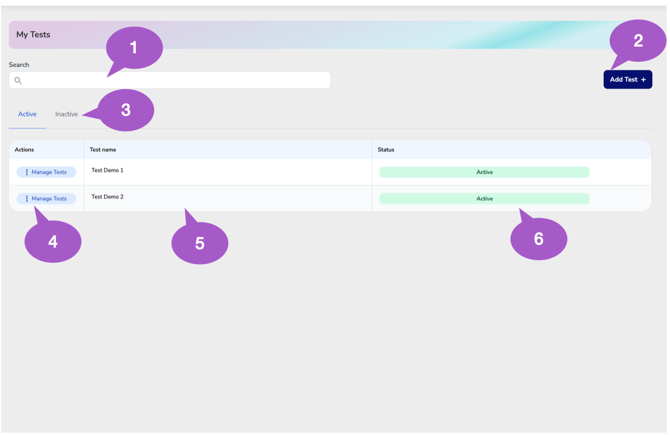
1. Search Bar
Quickly locate stored tests by searching your test library. This area helps you find tests faster when managing larger test collections.
2. Add Test
Create and add new tests to your Test Manager library. Newly created tests will be stored and available for future course use.
3. Active / Inactive Tabs
Switch between viewing active tests currently available for use and inactive tests that have been retired from active use.
4. ManageTest
Access available management options for each stored test, including viewing details, making edits, and changing the current status.
5. Test Name Column
Displays the names of all tests stored within your Test Manager for easy identification and organization. To avoid confusion and maintain organization, each test must have its own unique name.
6. Status Column
Displays the current status of each test so you can quickly identify whether a test is active or inactive.
Understanding the Test Manager from inside the Course Wizard.
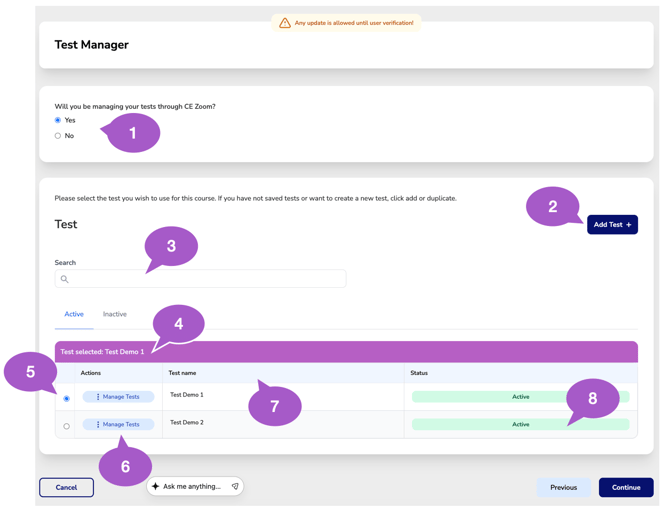
1. CE Zoom Test Management Selection
Controls whether tests will be issued and managed through CE Zoom for this course. Selecting Yes displays the Test Manager, where tests can be created and selected a test.
2. Add Test
Provides access to create and store new tests within your Test Manager library for future course use.
3. Search Bar
Search stored tests within your Test Manager library to quickly locate specific tests or narrow down large test collections.
4. Active / Inactive Tabs
Switch between viewing tests currently available for use and tests that have been marked inactive or removed from active use.
5. Test Selection Indicator
Displays which test is currently selected for the course. Only one test can be selected and associated with the course at a time.
6. Manage Tests
Access available management options for each stored test, including viewing details, making edits, and changing the current status.
7. Test Name Column
Displays the names of all tests stored within your Test Manager for easy identification and organization. Each test must have a unique name.
8. Status Column
Displays the current status assigned to each test so you can quickly identify whether a test is active and available for use.
Test Manager Rules and Behaviors
- To ensure accurate evaluation, we recommend creating a unique test for each course, tailored to assess the specific knowledge and comprehension of its content.
- Once created, a test can be attached to multiple courses offering the same content, with results tracked separately for each course.
- Once a user completes a test, it becomes locked and cannot be edited. If changes are needed, you must create a new test and deactivate the outdated one.
- Each test requires a unique name for easy identification and accurate result tracking.
- When adding a course, only active test are shown for selection, making it easier and faster to identify the most relevant options.
Start Using the Test Manager:
- How to create a new test on CE Zoom
- How to edit a test on CE Zoom (before responses have been collected)
- How to change the status of a test on CE Zoom (Mark Active/Inactive)