
Preview 
Preview – Click this button to view the layout of your CE certificate before finalizing.
⚠️ Mandatory Fields Check – If any required fields are incomplete, the system will not allow you to preview the certificate.
-
- Missing fields will be highlighted in red.
- A warning message will appear to indicate what needs to be completed before proceeding.
- Ensure all required fields are filled
- If you want to make more updates click update Certificate to returne to the Certificate Creator
- Click done when all info is correct.
- Preview mode is intended for reviewing layout, branding, and certificate accuracy before finalizing your template.
Cancel – Select this if you want to discard changes and exit without saving your Certificate.
Summary
The Preview section allows you to review how your completed CE certificate will appear before saving your certificate template. This page helps verify layout, branding, provider statements, images, and certificate content while identifying missing required information before finalization.
Preview Features
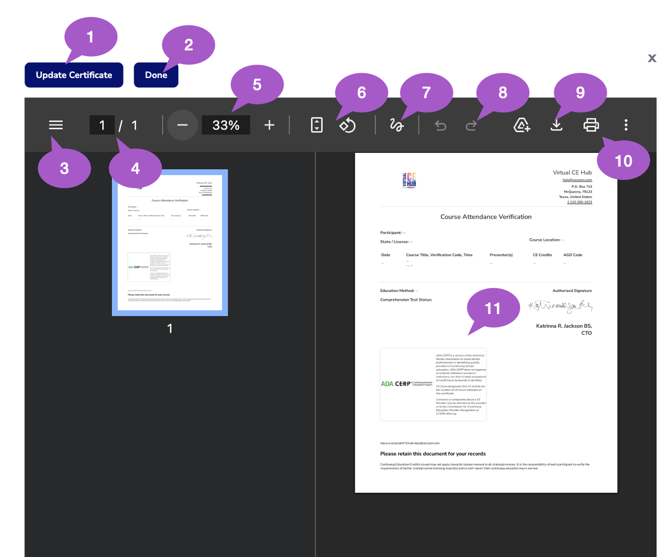
1. Update Certificate
Select Update Certificate if changes are needed after reviewing the preview. This option returns you to the certificate editor where you can modify settings, layout, or content.
2. Done Button
Select Done when you are finished reviewing the preview and are ready to save your certificate template.
3. Page Navigation Panel
Displays all certificate pages and allows navigation between pages when multiple certificate pages exist.
4. Page Counter
Displays your current page number and total certificate pages.
5. Zoom Controls
Use the zoom controls to zoom in for detailed review or zoom out to view more of the certificate layout. Zoom Percentage Indicator - Displays the current zoom percentage while reviewing the certificate.
6. Rotate View
Rotate the certificate preview for easier viewing if needed.
7. Annotation Tools
Use annotation tools to temporarily mark up or review the certificate preview using drawing, highlighting, shapes, or notes.
⚠️ Important: Annotation tools are only available within the preview window. Any annotations created during preview mode will not be saved or included in the final certificate template distributed to attendees.
8. Undo / Redo Controls
Allows you to undo or redo temporary preview annotations.
9. Download Preview
Download a copy of the certificate preview for additional review outside the system.
10. Print Preview
Print the certificate preview directly from the preview screen.
11. Certificate Preview Window
Displays how your completed CE certificate will appear to attendees using your configured settings and content.
⚠️ Important: The Course Attendance Verification section will remain blank during preview because this information is automatically populated for each attendee based on course setup and participant information when CE credit is issued.