
Topics & Providers
Choose the primary CE Topic and CE Activity Provider. To jump directly to information about CE Activity Providers, click Providers in the heading above.
If you hold licenses across multiple industries, you’ll be asked to select topics and providers separately for each industry.
This is because each industry has its own unique set of topics and approved providers, and these selections ensure your CE credits are properly categorized and applied to the correct industry's tracking and compliance requirements.
Topics:
Select a single course topic that best describes the course or activity you completed.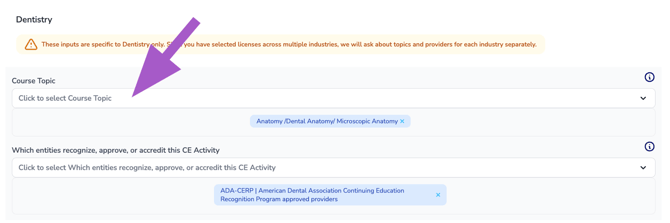
Best Practice: Select one course topic whenever possible. Most continuing education courses are best represented by a single topic. Only select multiple topics if the course was intentionally designed to cover multiple distinct subject areas or combines two or more separate educational sessions into a single CE activity.
Avoid breaking a single course into multiple topics simply because it briefly discusses related subjects. Doing so can result in inaccurate topic allocations and may affect compliance tracking for topic-specific renewal requirements.
Note: If multiple topics are selected, the next step will ask you to divide the total CE hours according to the time spent learning each topic to ensure accurate tracking of renewal requirements per topic.
Understanding the Course Topic Dropdown
All course topics are organized under a main subject heading that best represents the course content. Expanding a subject heading displays the available topics within that category.
Most subject headings contain two types of topics:
- General Topics – Topics that apply broadly and are not specific to any individual state.
- State-Specific Topics – Topics created for a particular state when that state has unique continuing education requirements or regulations.
Choosing the correct topic helps ensure your course is categorized accurately and can be found more easily by learners searching for that subject.
Important: If your course is intended to satisfy a state-specific continuing education requirement, select the appropriate state-specific topic whenever one is available. In many cases, selecting the general version of the topic will not satisfy a state's specific licensing requirement.
Finding State-Specific Topics
If you know your course applies to a specific state, the quickest way to find those topics is to search using the state's name.
Examples:
- Arizona
- Texas
- California
- New York
This will display all topics associated with that state, making it much easier to locate the correct state-specific option.
Understanding Search Results
The topic search filters the list while keeping topics organized under their original subject headings.
This means:
- Matching topics remain under their existing subject and category headings.
- Non-matching topics are hidden.
- Results are not moved to the top of the list.
Because of this, you may need to scroll through the filtered list to see every matching topic. Additional matches may appear farther down under other subject headings.
Tip: Don't stop at the first result. Continue scrolling to review all matching topics before making your selection.
Providers:
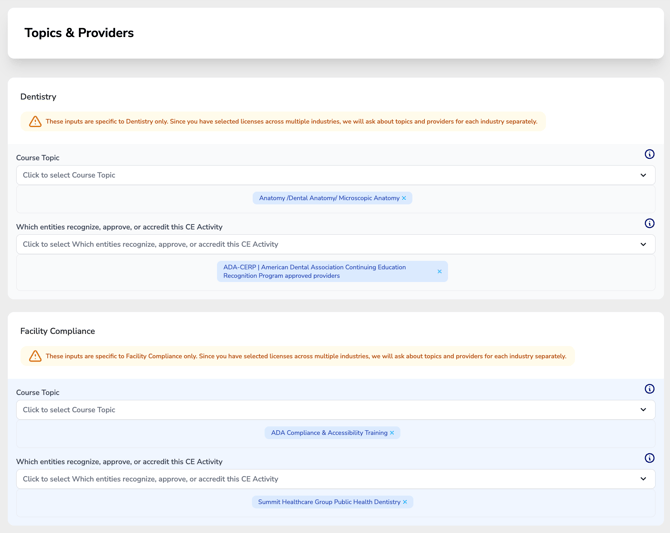
What Is a CE Activity Provider?
The CE Activity Provider is the organization or accrediting body that recognizes, approves, or accredits the continuing education activity. This organization confirms that the course meets the educational standards required for continuing education credit.
This is not the course presenter, instructor, speaker, or the company offering the course.
How to Identify the Correct Provider
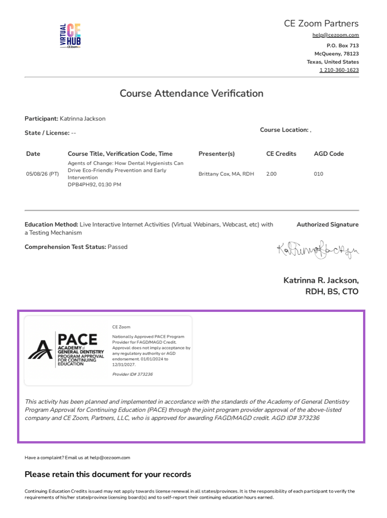
If you're unsure which provider to select, the easiest place to look is your CE Certificate of Completion.
Look for:
- An organization logo displayed on the certificate.
- A statement indicating the course was approved, accredited, recognized, planned, or implemented by an organization.
- References to a provider approval program or accrediting agency.
These logos and approval statements are often found near the bottom of the certificate.
In the example below, the highlighted Academy of General Dentistry (AGD) PACE logo and approval statement identify the CE Activity Provider.
Tip: You're looking for the organization that appears to have reviewed, approved, accredited, or overseen the educational quality of the course—not the person who taught it.
Can't Find a Provider?
If your certificate does not display an accrediting organization, approval statement, or recognizable provider logo, select: No Provider | Provider Not Found
This option should only be used when no CE Activity Provider can be identified from the course or certificate.
Understanding the CE Activity Provider Dropdown
By default, the most commonly selected CE Activity Providers are displayed at the top of the list within the dropdown for quick access. These providers appear without a category heading.
All remaining providers are organized under a Provider Type heading that best represents the organization or entity offering the continuing education activity. Expanding a Provider Type heading displays all available providers within that category.
Searching for a CE Activity Provider
You can search for a provider using either:
- The provider abbreviation (for example, AGD, ADA, AHA)
- A single keyword from the provider's name
For the best search results, keep your search simple. In many cases, less is more.
Tip: Search using either the provider abbreviation or a single keyword—not both together.
Provider searches require the text to closely match the provider name. Small differences such as additional words, spaces, punctuation, or searching terms in a different order may prevent a match from being found.
Understanding Search Results
Search results remain organized under their original Provider Type headings. Matching providers are not moved to the top of the list.
As you search:
- Matching providers remain under their Provider Type heading.
- Non-matching providers are hidden.
- You may need to scroll down to view every matching provider.
Tip: Continue scrolling after searching to ensure you've reviewed all matching providers.