
Overview
If you do not have enough available course posting credits to create and publish your course, CE Zoom will automatically redirect you to the Pricing Guide screen to purchase additional credits before continuing.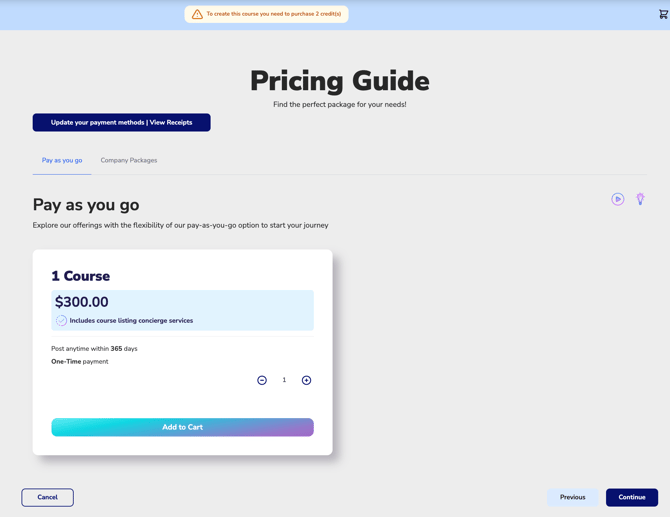
Course posting credits are required based on the industries selected for your course and any selected add-ons.
You may be redirected to the Pricing Guide if:
- You do not have enough course posting credits available
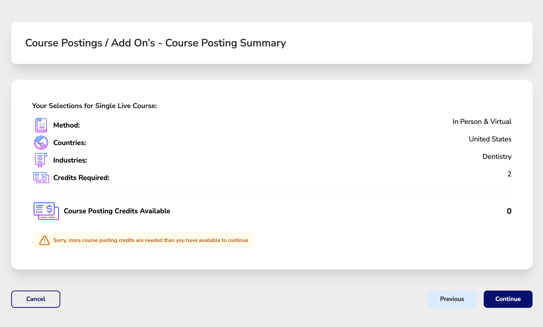
- You selected additional industries that require extra credits
- You selected optional add-ons that increase the total credits required
- You have used all available posting credits included in your package
How to Purchase Additional Posting Credits
Step 1: Review Required Credits
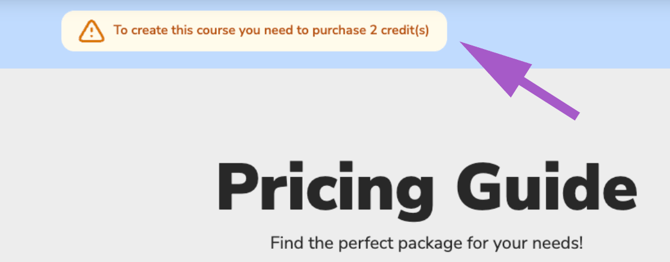
Review the number of posting credits required for your course setup as shown in the previous course posting summary screen
Step 2: Select Quantity
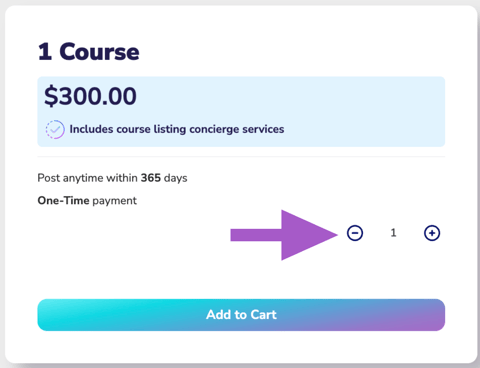
Choose the posting quantity that best fits your needs.
- Use the plus (+) and minus (-) buttons to adjust quantities
Step 3: Add to Cart
Click Add to Cart to add your selected posting credits.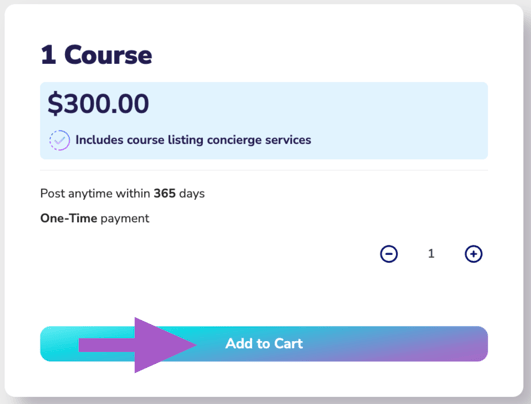
Step 4: Continue to Checkout
Click Continue to review optional add-ons, complete payment, and finalize your purchase.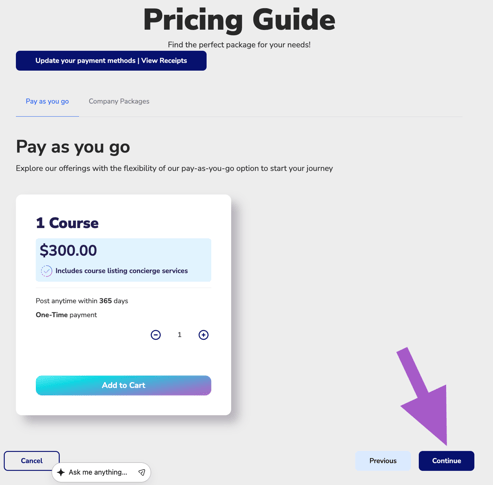
If you reach the Payment screen without purchasing enough credits to post your course, you'll see the warning message below. Return to the Pricing Guide to add the additional credits required before completing your purchase.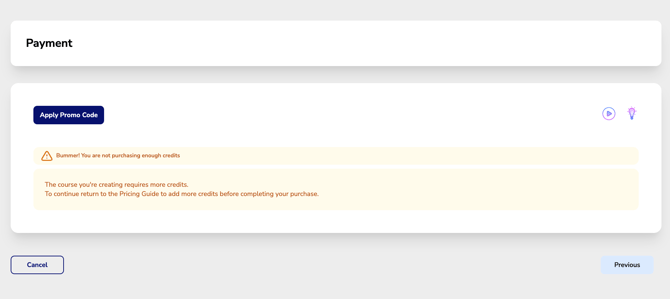
Step 5: Return to Course Setup
Once payment is complete, your posting credits will automatically be applied so you can continue creating and posting your course.
Important Notes- Posting credits are required to publish courses
- Each selected industry requires a posting credit
- Additional add-ons may increase the credits required
- Additional purchased credits can be used for future course postings within their valid period
- If you navigate away before completing your purchase, your course setup progress will not be saved. Progress saving begins after this step is completed.