
If additional course posting credits, AGD Joint Providership credits, or add-ons are required during course setup, you will be directed to the payment screen to complete your purchase before continuing through the wizard.
This article walks through how to:
- Apply a promo code
- Enter payment information
- Complete checkout
- Finalize your purchase and continue course setup
Step 1: Review Your Payment Summary
Before checkout, review your payment summary to confirm: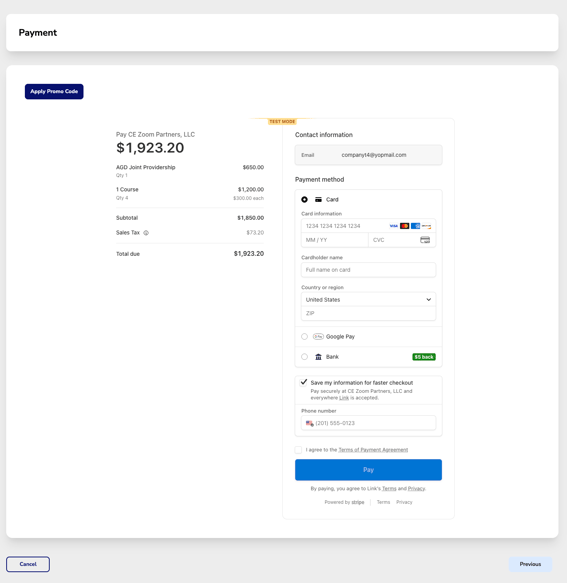
- Posting credits selected
- Add-ons selected
- Quantities purchased
- Taxes and total due
If additional credits are still required you will recieve a warning, return to the Pricing Guide to add more before continuing.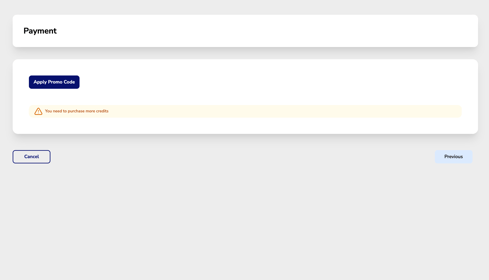
Step 2: Apply a Promo Code (Optional)
If you have a discount or promotional code:
-
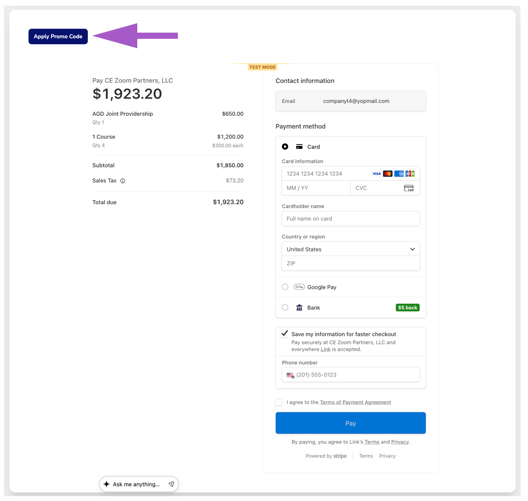
Click Apply Promo Code
-
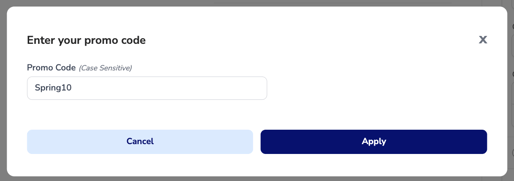
Enter your promo code exactly as provided
-
Click Apply
Important: Promo codes are case sensitive.
Once applied successfully, your discount will automatically update your payment summary.
Step 3: Enter Payment Information
Choose your preferred payment method and complete all required fields.
Depending on your payment method, you may be asked to provide:
-
Card information
-
Cardholder name
-
Billing ZIP/postal code
-
Country or region
-
Contact information
-
Phone number
Optional: Select Save my information for faster checkout if you would like your payment details securely saved for future purchases.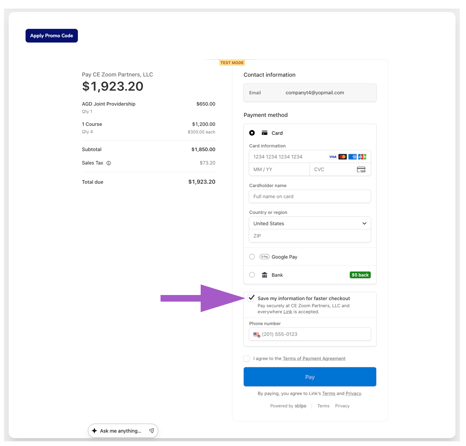
Step 4: Review and Accept Payment Terms
Before submitting payment:
-
Review your order summary
-
Verify your total purchase amount
-
Accept the Terms of Payment Agreement
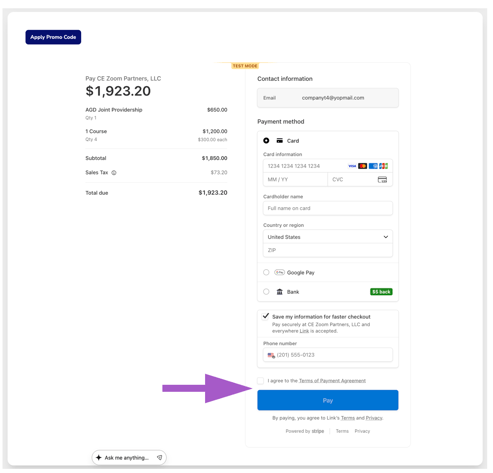
Once completed, click Pay to finalize your purchase.
Step 5: Return to Course Setup
After payment is successfully processed:
-
Your credits will automatically be added to your account
-
You will return to the Course Wizard
-
Continue completing the remaining setup steps for your course
Tips & Reminders
Promo codes are case sensitive
Enter promo codes exactly as provided.
Review totals before payment
Taxes and discounts are reflected in your payment summary.
Credits are added immediately after purchase
Once payment is complete, purchased credits become available for use within the Course Wizard.