
This section allows you to preview and customize how your course registration page appears to the public. The Layout area controls how your course details are displayed, including titles, descriptions, dates, images, and registration elements.
Here, you can enhance your landing page by uploading custom images and adjusting visual elements such as button colors to align with your brand. These customization options help create a polished, professional registration experience while maintaining the structured layout of the CE Zoom platform.
Use this section to ensure your course presentation reflects your organization’s branding and provides a clear, engaging experience for prospective attendees.
Layout
This step allows you to design and preview your event’s public registration landing page.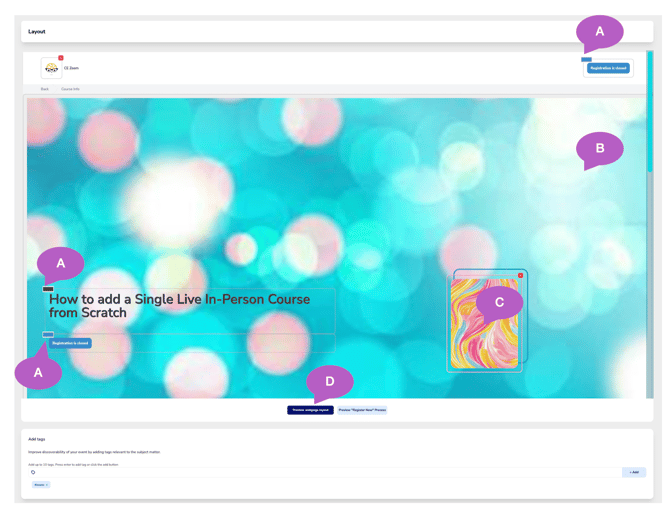
What you can do here:
-
A. Update Button Colors
Click the color boxes next to each label to change the corresponding button or text color. -
B. Upload a Banner Image
Click the top image area to upload a large background photo that will appear at the top of the registration page. -
C. Add a Secondary Image (optional)
You can upload a second, smaller image (such as a logo ). Click red X to remove image. -
D. Preview the Full Page
-
Click "Preview webpage layout" to see a non-editable version of the final registration page.
-
Click "Preview 'Register Now' Process" to walk through the attendee registration steps. Great way to see if you have your course and registration set up correct.
-
Preview Your Content
Scroll down to see how all your previously entered course/event information will display.
- Course Details
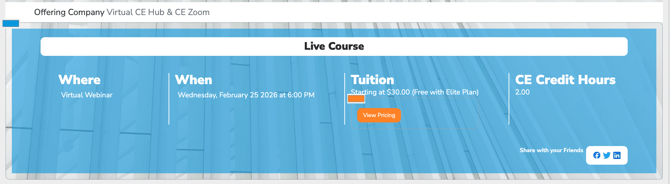
This section controls how your course information is displayed on the public registration landing page. All details shown here — including course type, date and time, tuition, and credit hours — are pulled directly from the information entered during course setup.
- Presenters
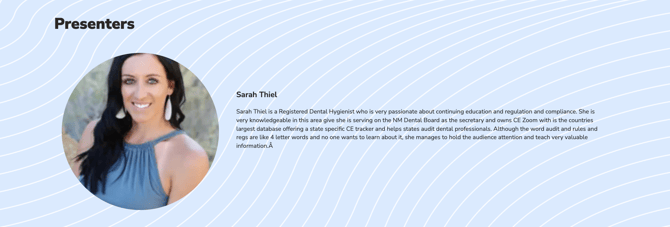
his section displays all presenters attached to your course, along with their headshots and professional bios.
If only one presenter is assigned to the course, their photo and full bio will automatically display on the registration page.
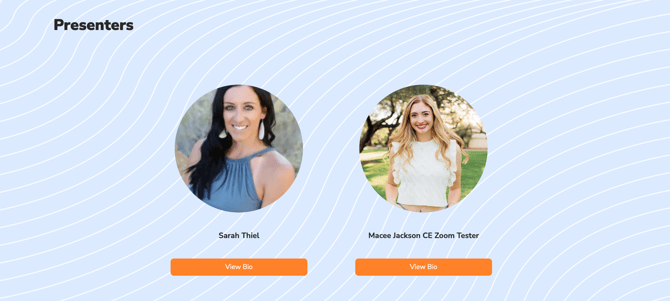
If multiple presenters are attached, each presenter’s photo will appear with a View Bio option. Attendees can click to expand and view individual bios, keeping the registration page clean and easy to navigate.
-
Edit the Overview/Objectives
The course overview and learning objectives are editable directly from this page if any changes are needed.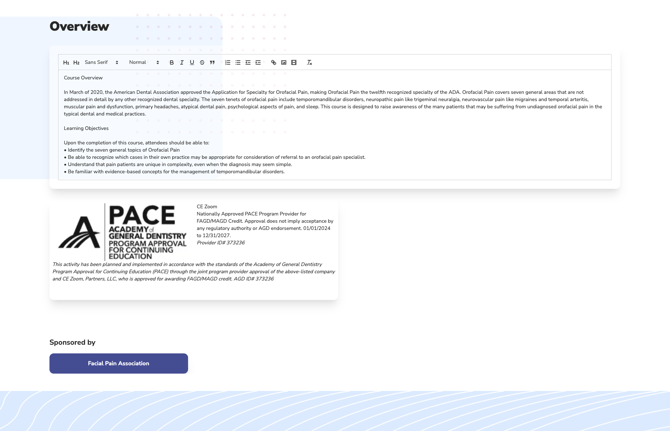
- Course Classification & Compliance Details
This section outlines regulatory, approval, and classification details associated with your course, including provider approval, AGD subject codes, industries, prerequisites, and disclosure information.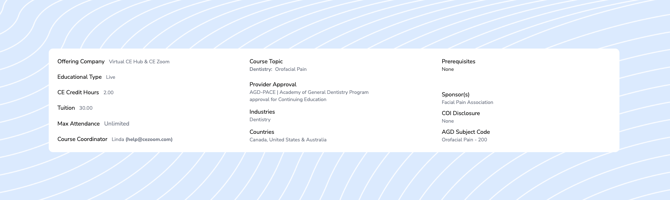
- Add Tags
Tags help improve your course’s searchability and visibility. We’ve added a few by default to get you started. You can remove these and create your own — just remember, at least one tag is required (maximum of 10).