
The Certificate Manager allows you to create, customize, and manage CE certificate templates for your courses. Instead of designing a certificate for every individual course, you can build one compliant template and apply it across multiple events — saving time while ensuring regulatory accuracy.
Course Completion Certificate
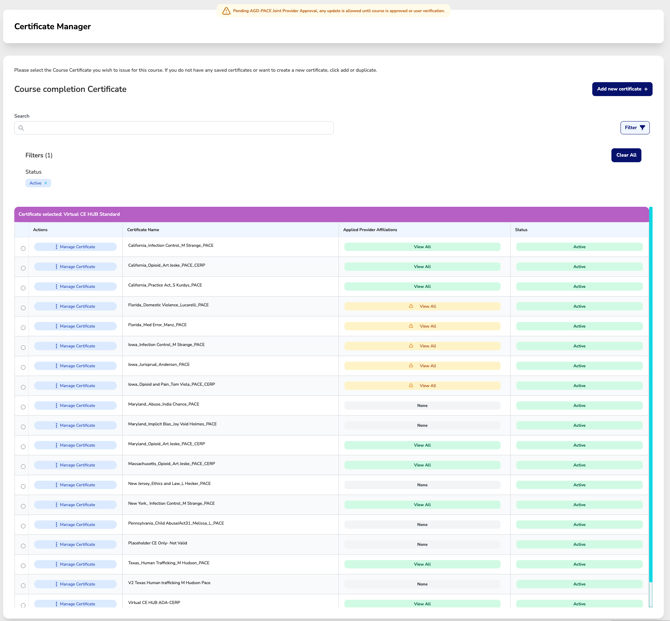
Use this screen to select which certificate will be issued to attendees upon successful course completion.
Search & Filter:
Use the search bar to quickly find certificates by name.
Selected Certificate:
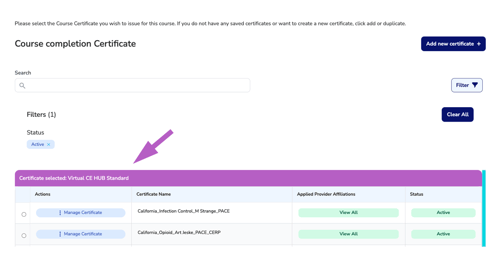
When you select a certificate template for your course, the chosen certificate will display in the purple heading bar within the Course Wizard.
Selecting a Certificate:
-
-
Use the radio button on the left to select one certificate from the list.
-
Once selected, the certificate name will appear in a purple bar at the top of the table to confirm your choice.
-
Manage Certificate Options:
-
-
Click Manage Certificate to view or edit the layout, wording, provider logos, or settings for that certificate.
-
Add a New Certificate:
-
- If you do not have a saved certificate or want to create a new one, click “Add new certificate +” in the top right corner.
More Info: How to create a new Course Certificate