
Use this section to select the presenter or presenters responsible for teaching or presenting the course.
If your course has multiple presenters, each presenter must be selected individually.
Before adding a new presenter, always search by name and email to see if the presenter already exists in the system. Creating duplicate presenter accounts can separate course-related data—such as tests, surveys, and verification records—across multiple accounts.
To help maintain accurate presenter records and avoid unnecessary issues, please only add a new presenter if an existing account cannot be found.
Need help with a specific part? Use the Quick Links to jump to the section that applies to you.
1. Selecting Course Presenter(s)
2. Updating | Editing Presenter Details
3. Add New Presenter | Presenter not Found
1. Selecting Course Presenters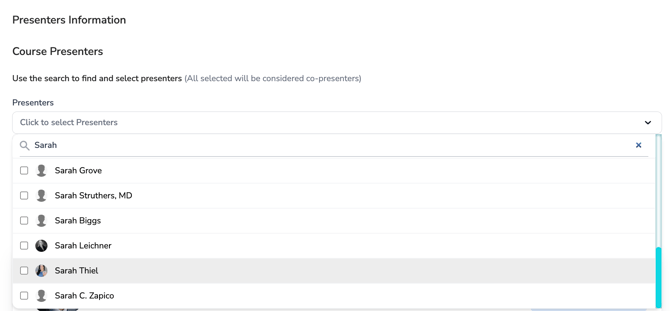
-
Click inside the “Presenters” field to reveal a drop-down menu of all available presenters in the CE Zoom system, or begin typing a name to search.
-
All selected names will be considered co-presenters.
2. Updating | Editing Presenter Details
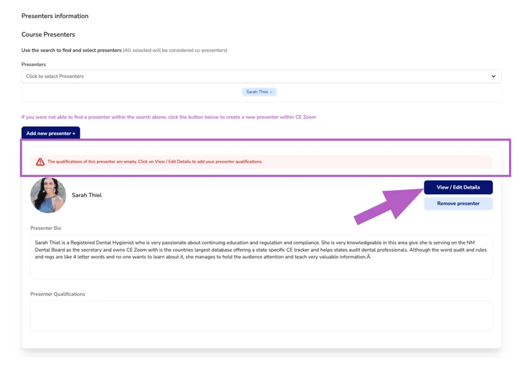
If any required presenter information is incomplete, a notification will appear prompting you to review the presenter’s details.

- Click View/Edit Details to edit and update the presenter's bio and qualifications
-
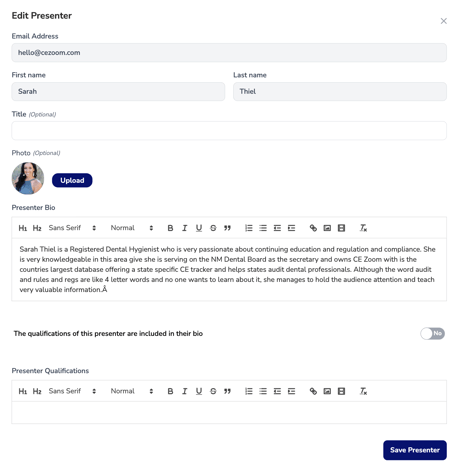
You will be taken to the Edit Presenter editor.
Non-Editable Fields
The following fields cannot be edited:
-
Email Address, First Name, Last Name
These fields are tied to the presenter’s CE Zoom account.
Editable Presenter Details
All remaining fields can be edited or updated. Please note that presenter information is auto-populated from the presenter’s account. Any changes made here will apply only to this course.
Important: Once you update presenter details for a course, the only way to revert to the original account information is to remove the presenter and re-add them.
Title (Optional)
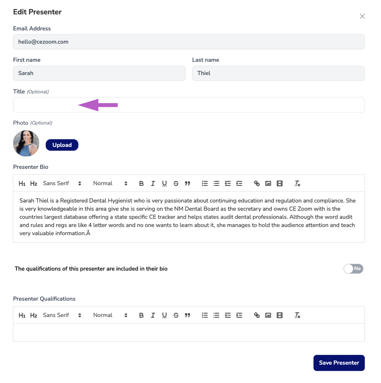
Use this field to add professional titles or credentials (e.g., DDS, RDH, MPH).
-
If credentials are pre-populated, you may update them to display the presenter’s preferred credentials for this course.
Photo (Optional)
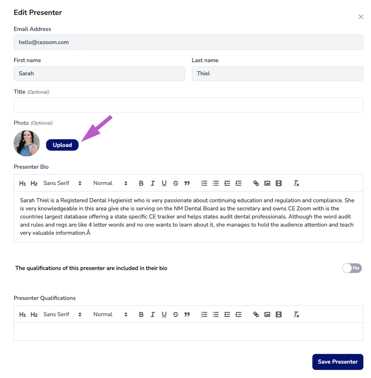
Upload a clear headshot to personalize the presenter’s profile.
-
If the presenter already has a profile photo in their CE Zoom account, it will be used by default.
-
You may upload a new image for this course by clicking Upload.
-
The uploaded image will be unique to this course and will not overwrite the presenter’s main profile picture.
Presenter Bio
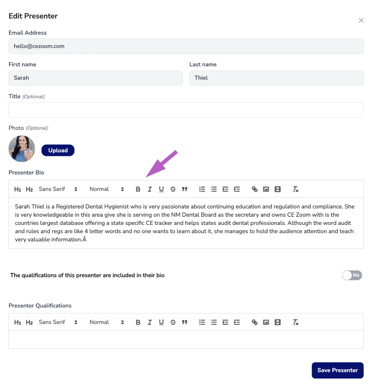
Enter a brief, professional summary of the presenter’s background, experience, and expertise.
-
If the presenter already has a bio saved in their CE Zoom account, it will automatically populate.
-
You may edit or customize the bio as needed for this course.
-
Changes made here apply only to this course and do not affect the presenter’s main profile.
Presenter Qualifications Toggle
-
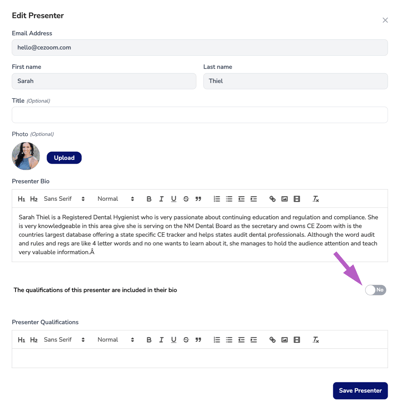
If the presenter’s qualifications are already included in the bio, toggle this option to Yes.
-
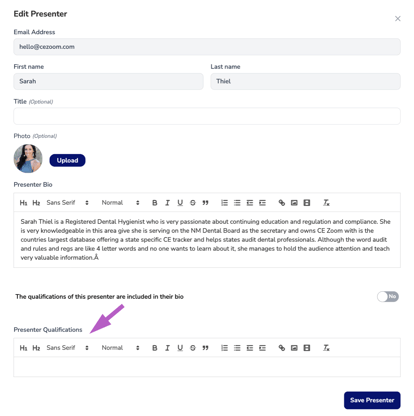
If qualifications are not listed in the bio, leave the toggle off and enter them in the Presenter Qualifications field below.
Add New Presenter | Presenter not Found
- If the presenter is not found in the system, click “Add new presenter” to create a new profile within CE Zoom.
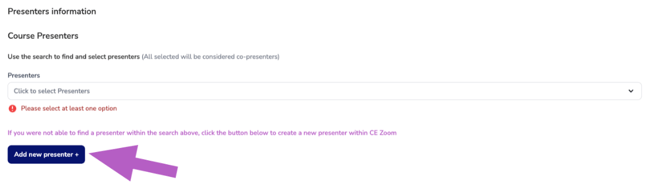
⚠️Only use this option if the presenter does not appear in the search results. Creating duplicate presenter accounts makes it difficult for presenters to manage their courses and CE history across the platform.
- Enter your presenter's email, and see if the system finds a match:
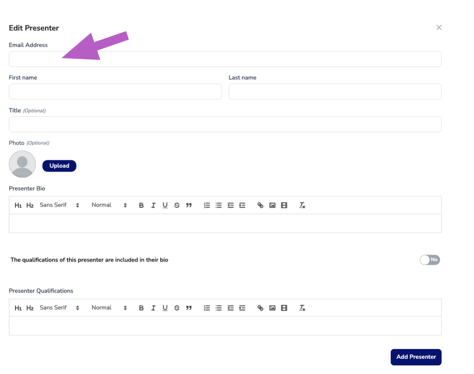
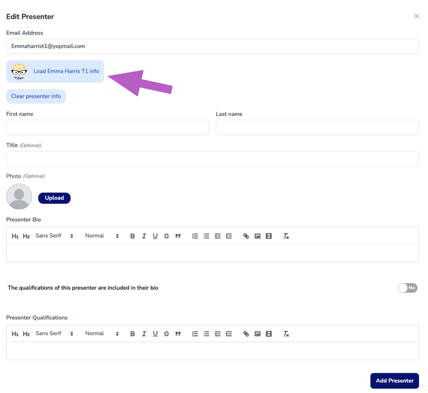
Email Match: If the system finds a match for the presenter's email it will display the match:
- Click Load presenters Information.
- Make any updates and fill in any missing information
More Info: How to Edit Presenter Details
Email Not Recognized
If the system does not recognize the email address you enter, you’ll be prompted to complete the presenter form to create a new presenter profile.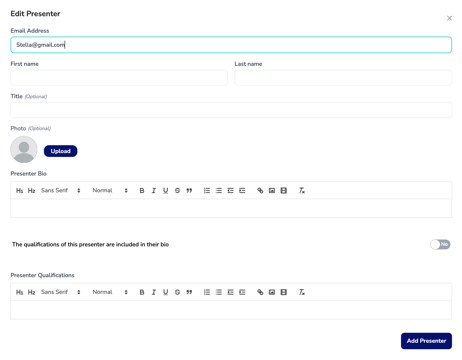
Before doing so, please try all known email addresses for the presenter. Most presenters use their personal email address, as we recommend avoiding company emails in case of future job changes.
Important Presenter Setup Guidelines
-
Do not combine presenters into a single profile (for example, “Sarah Thiel and Katrinna Jackson”).
-
Each presenter must have their own individual profile to ensure accurate tracking of:
-
Survey results
-
Test outcomes
-
Course reporting and verification data
-
Creating combined profiles can cause data to be split or misreported.
What Happens Next
When you add a new presenter:
-
A presenter profile is created on their behalf within CE Zoom
-
The system automatically sends a welcome email with instructions to activate their account
-
Once activated, the presenter can:
-
Log in to CE Zoom
-
View and manage their profile
-
Access details for courses they are assigned to
-
🔔 Important: Be sure to enter the correct email address so the presenter receives the activation link and course access information.
Once complete, click Save Presenter to finish creating the profile.