
How to add an Event
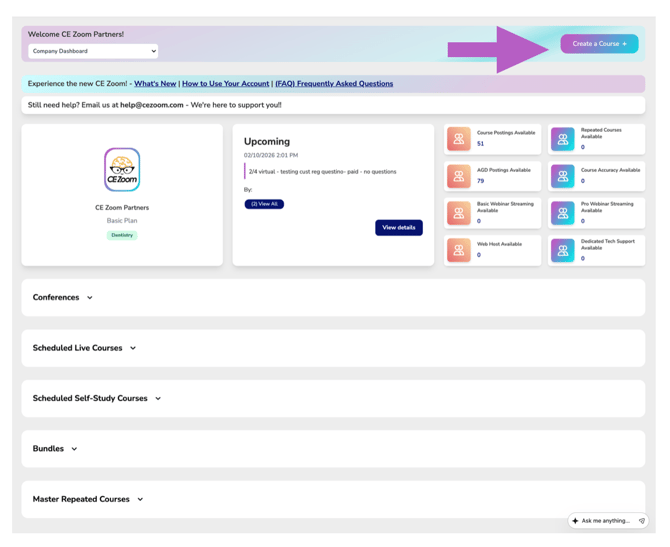
- From your Company Dashboard, click the Create a Course button in the top right corner. This will launch the course creation wizard.
Event Type
Select the event type, then click continue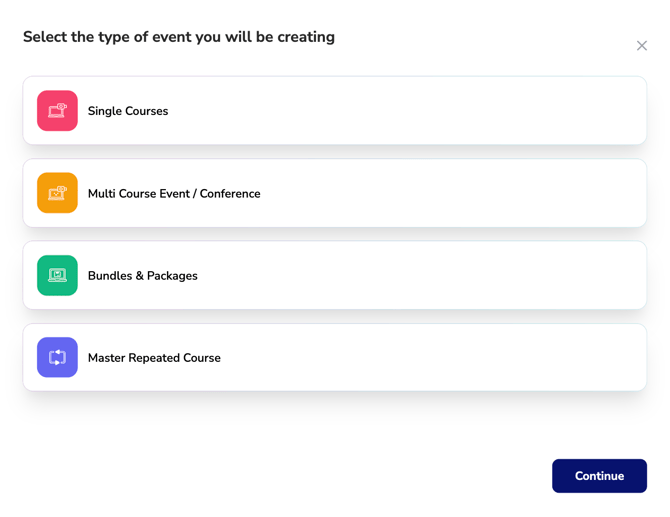
- Single Course: Only one individual course, Live Course, Self Study Course and Repeated Course
- Multi Course Event | Conferences: Live events that offer multiple courses with different course topics, a single course that you want to break up into morning and afternoon sessions, or a single course that is offered over multiple days. Includes both in-person and virtual.
- Bundles & Packages: Bundling empowers companies to strategically compile tailored course packages from their extensive library. Instead of offering courses separately, companies can now present select courses as bundled deals. Registration options for bundles include free access or a one-time purchase price for the entire package.
- Master Repeated Courses: Do you offer the same promotional course or training session more than 10 times a year? If so, this option lets you set up the course once, add all your presenters, and instantly create individual presenter templates. You can then quickly schedule unlimited course offerings for a full year at a single price (includes 1 presenter; additional presenters incur a small fee). Each presenter receives a unique registration link, directing attendees to choose from the available dates that presenter is offering the course.