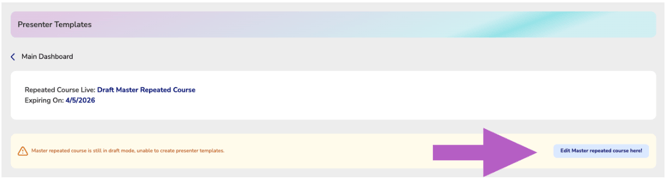
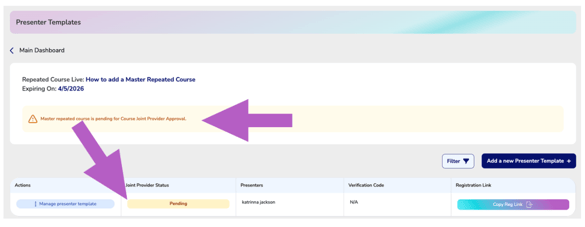
Now that your Master Repeated Course has been created and posted, the next step is to add the presenters who will be offering the course. This section walks you through how to navigate to the Presenter Templates screen, where you can assign and manage individual presenters for your repeated course offerings.
Navigate to Presenter Templates
-
Go to your Company Dashboard and Find Master Repeated Courses
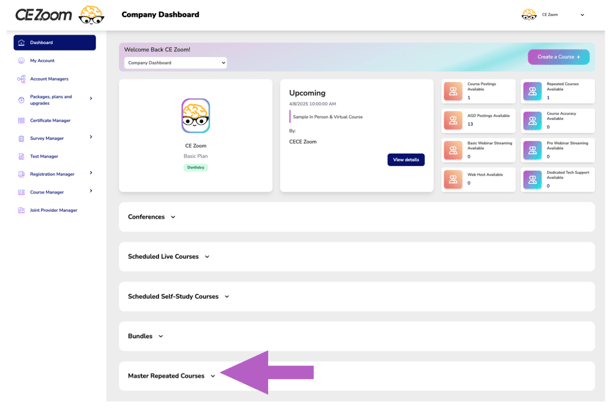
- Click the down arrow to expand the menu.

-
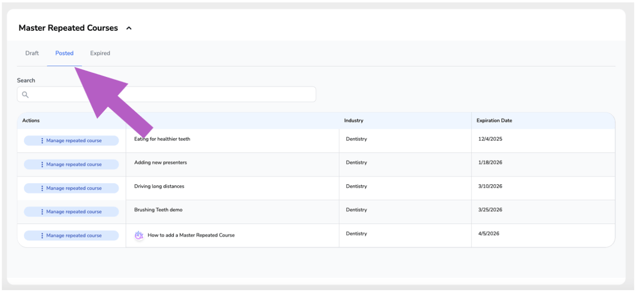
Click on the “Posted” tab to view all active Master Repeated Courses.
-
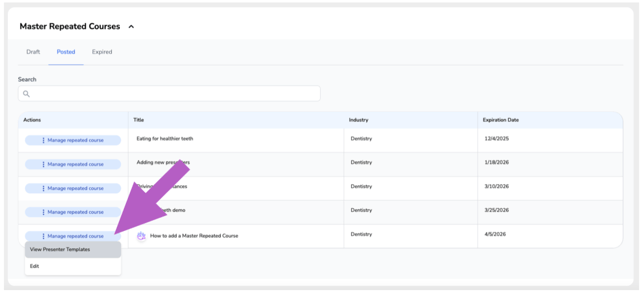
Find the course you want to update and click the “Manage Repeated Course” button under the Actions column.
-
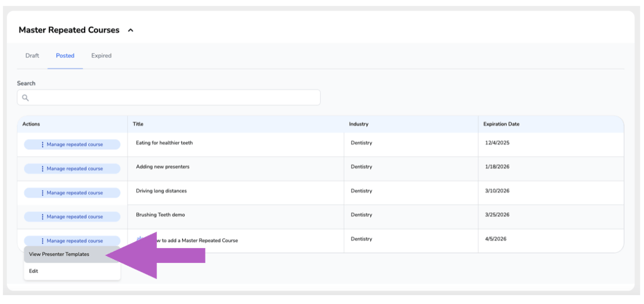
In the dropdown that appears, click “View Presenter Templates.”
-
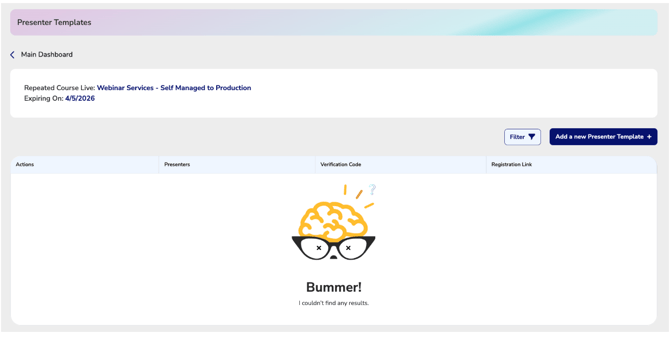
This will advance you to the presenter template manager screen
⚠️ If you try to access presenter templates for a course that's still in draft, you'll be shown a warning message prompting you to post the course first.
⚠️ If you try to access presenter templates for a course that's posted but still pending AGD Joint providership, you'll be shown a pending warning message.
- Presenters can still be added, but they will be in pending status until the course and presenter are accepted.