
How to Upgrade or Downgrade Licenses for an Employee
-
Go to the Employee Connection Manager
From your Office Manager Dashboard, click “View all” under the Employee Connection Card.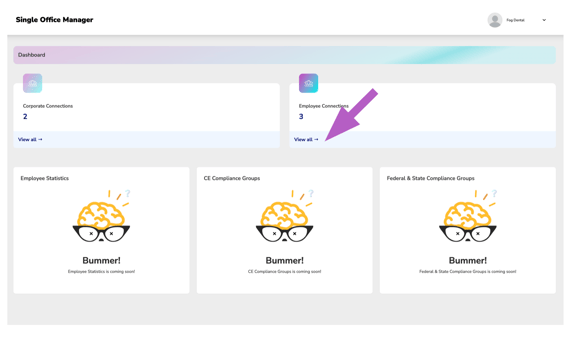
-
Navigate to the Connected Employees Card
Click 'View All' from the Connected Employees Card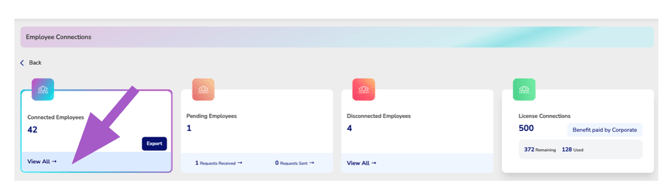
-
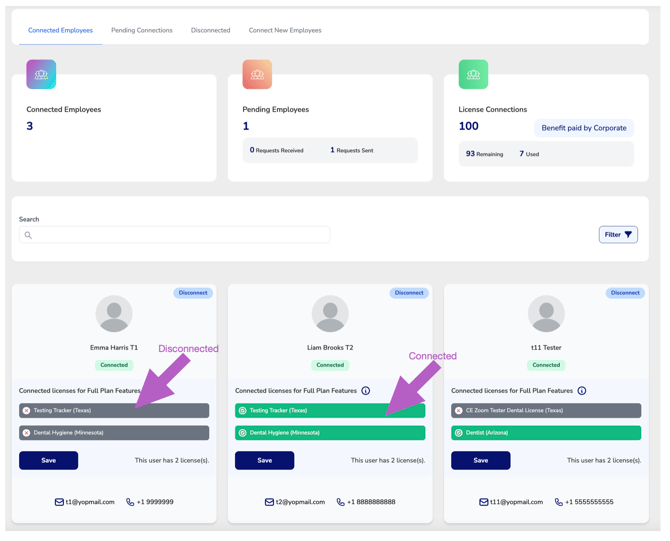
Find the Employee
Locate the employee's profile card.-
Use the search bar or apply filters to narrow down your list if needed.
-
-
Select Licenses to Upgrade or Downgrade
-
Click on any license shown on the card to change the connection status of that license
-
Green = Upgraded
-
Gray = Not connected (Downgraded)
-
-
-
Click Save
Your changes will not apply unless you click Save at the bottom of the card.
✅ Once a license is upgraded, the employee receives full CE Zoom plan benefits for that license, including automated CE tracking and reminders.