
How to Upgrade or Downgrade Licenses for an Employee
-
Go to the Employee Connection Manager
From your Executive Suite Dashboard, click “View all” under the Employees Card.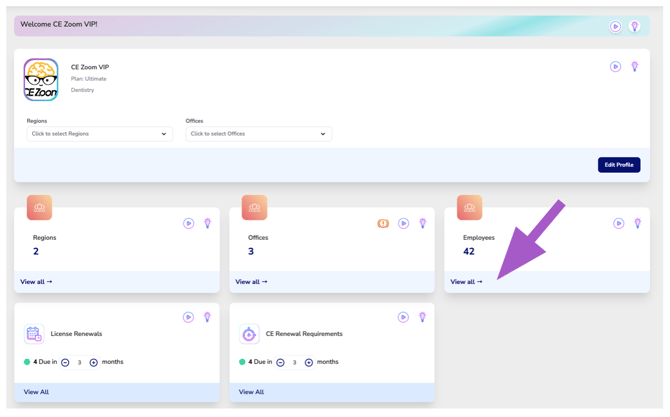
- Select the Office
From the Select Your Office drop-down, choose the office associated with the team member whose license connections you want to upgrade or downgrade.
Employee license connections are managed by office, so selecting an office will display the connected employees associated with that location.
If your organization has multiple offices, you can return to this drop-down at any time to switch locations and manage license connections for employees at another office.

-
Navigate to the Connected Employees Card
Click 'View All' from the Connected Employees Card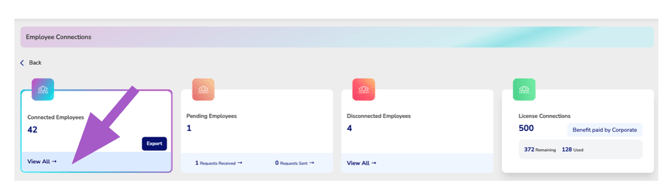
-
Find the Employee
Locate the employee's profile card.-
Use the search bar or apply filters to narrow down your list if needed.
-
-
Select Licenses to Upgrade or Downgrade
-
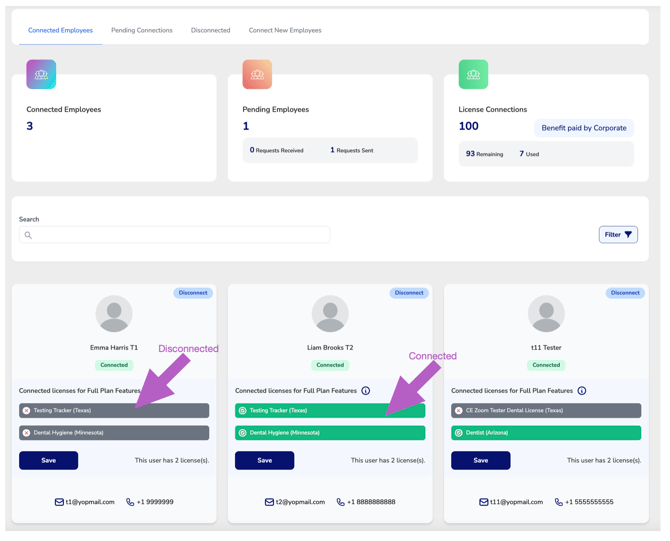
Click on any license shown on the card to change the connection status of that license
-
Green = Upgraded
-
Gray = Not connected (Downgraded)
-
-
-
Click Save
Your changes will not apply unless you click Save at the bottom of the card.
✅ Once a license is upgraded, the employee receives full CE Zoom plan benefits for that license, including automated CE tracking and reminders.