
Overview
Your office affiliation settings determine how your location is categorized on CE Zoom and whether corporate entities can search for and connect with your office. Follow the steps below to update your affiliation status.
Go to Corporate Connections
From your Dashboard, click “View all” under the Corporate Connections section.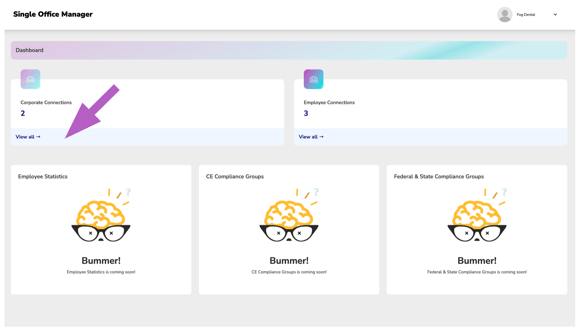
Affiliation Settings

The Group Practice / Corporate Affiliation setting determines how your office is classified within CE Zoom and who can discover your office when searching for locations to connect with.
By default, new Office Manager accounts are set to Make Office Searchable, Corporate Affiliations Not Yet Established. This allows your office to be found by Executive Suite organizations searching for offices to connect with.
If your office's affiliation changes or you need to update a previously selected affiliation, select the Group Practice / Corporate Affiliation drop-down menu and choose the option that best represents your office.
The available affiliation options are explained below to help you select the appropriate setting.
Affiliation Options
Single Office / Business, No Corporate Affiliation
Select this option if your business operates as a standalone office and is not affiliated with a corporate organization, group practice, or multi-location structure.
When selected:
-
-
- Your office will not appear in corporate office searches.
- Executive Suite organizations will not be able to discover or send connection requests to your office.
- Your office will operate independently without a corporate affiliation.
-
Make Office Searchable, Corporate Affiliations Not Yet Established
Select this option if your office is part of a corporate organization or multi-location group, but your corporate entity is not yet available in CE Zoom.
This may mean the corporate organization has not yet created an Executive Suite account or has not completed its setup.
When selected:
-
-
- Your office remains searchable by Executive Suite organizations.
- Your corporate organization can locate and request a connection to your office once their Executive Suite account has been created.
- This is the recommended option if your corporate organization is not yet listed.
-
Corporate Entity Listed
Select this option when your corporate organization appears in the available list.
When selected:
-
-
- Your office becomes affiliated with the selected corporate organization.
- Only that specific corporate organization will be able to locate your office and send a connection request.
- Other Executive Suite organizations will not be able to find your office during their connection search.
-
Save Your Changes
After selecting the appropriate affiliation, click Save to apply your changes.
Your office's visibility and connection eligibility will immediately update based on the affiliation option you selected.