
Search and Connect to a New Office
Go to My Offices
-
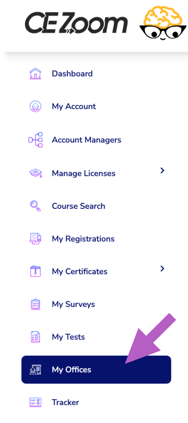
From your Dashboard, click “My Offices” in the left-hand navigation.
-
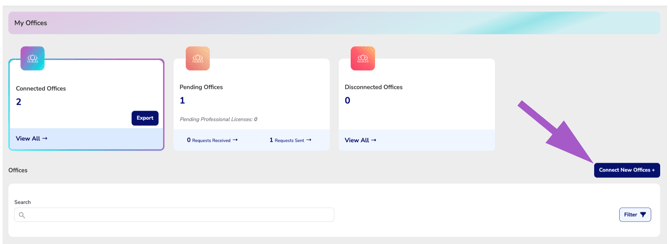
Click the “Connect New Offices” tab at the top of the page.
-
CE Zoom will auto-select the industry based on your connected licenses.
-
Use the Search field to locate the office you want to connect your CE Zoom Professional account with.
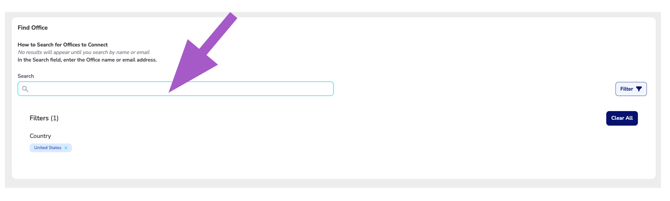
Enter the office name or email address to begin your search. No offices will appear until you enter search information.
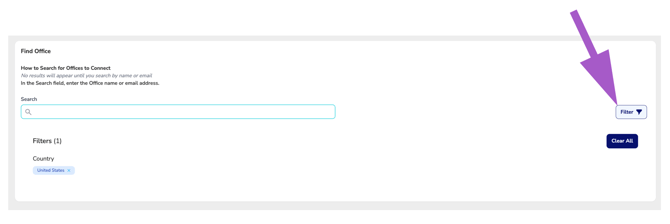
If you have trouble locating the correct office, click Filter to narrow your results by location or other available criteria.
Tip: If your organization has multiple locations, make sure you select the office where you primarily work or the location your organization has instructed you to connect with.
-
Once you locate your office, click “Send Request.”
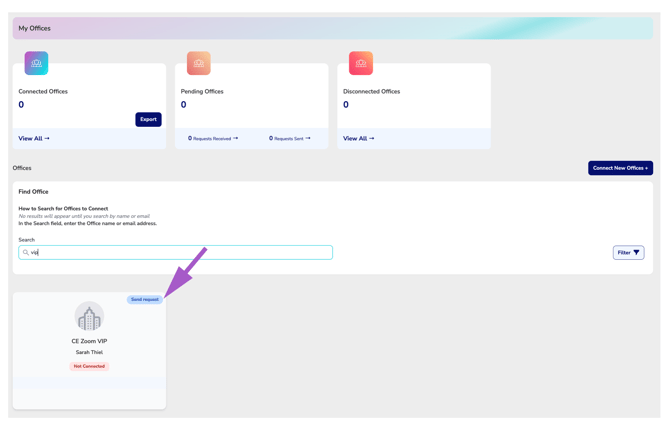
⚠️ If your office is not listed, reach out to them and ask them to create an Office Manager account on CE Zoom.
6. After sending a request, the office will appear under your “Pending Connections” tab as a Request Sent.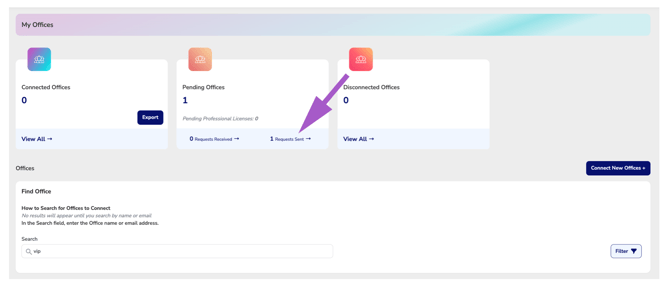
You can connect with multiple offices—one for each workplace you’re affiliated with.