
CE Re-Allocation
By default, CE hours are applied toward your renewal requirements in the order they were earned, based on the completion date and time.
As CE is allocated toward your renewal requirements, certain limits may affect which hours can count toward compliance. For example, your licensing agency may limit the number of hours that can be completed in a single day, the number of self-study hours, hours from a specific provider, or hours from certain course types.
If a CE record exceeds one of these limits, it will not be applied toward your renewal requirements. With the Pro and Elite plans, CE Zoom will display a Compliance Flag on the record explaining why it is being excluded and not applied towards completing your renewal requirements.
When this happnes you can use the Re-Allocation feature to change the order in which your CE records are allocated. This allows important or required CE activities to be considered first, helping your Compliance Tracker apply your CE in the order that best reflects your renewal strategy while still following your licensing agency's requirements.
How to Re-Order or Set a CE Allocation Order
Use this feature when a CE record is being excluded because a maximum limit has already been reached (such as maximum hours allowed per day, maximum self-study hours, provider limits, or course type limits), to override the default date-and-time allocation and give that record a higher priority.
By giving that CE record a Re-Allocation Order, your Compliance Tracker will evaluate and apply it before lower-priority records. This can help ensure that important or required CE activities are counted first.
- From your Dashboard, hover over My Certificates in the navigation menu to expand the submenu, then select My CEs.
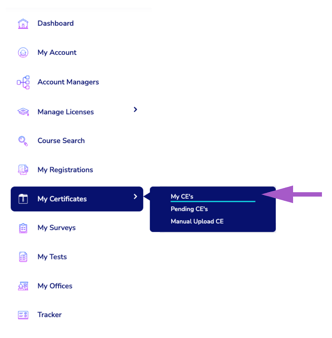
- In the CE Records Manager, locate the CE record you want to prioritize.
- Hover over Manage Certificate for that record and select Update Allocation Order.
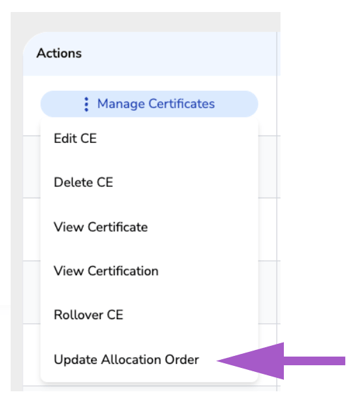
- Enter the Re-Allocation Order you want to assign to the CE record, then save your changes.
How Re-Allocation Priority Works
- 0 (Default) – The CE record is allocated according to the date and time it was earned.
- 1 – Highest priority. All CE records with an allocation order of 1 are evaluated first. If multiple records have a value of 1, they are allocated by their completion date and time.
- 2, 3, 4, etc. – After all 1 records have been evaluated, CE Zoom allocates records with an order of 2, then 3, and so on. Records with the same allocation order are always processed by their completion date and time.
⚠️ Important Tip: The goal is not to assign a Re-Allocation Order to every CE record. Leave most records at 0 and only prioritize the few records that need to be considered earlier in your compliance calculation.
When Should I Use Re-Allocation?
Re-Allocation allows you to manually adjust the order in which specific CE records are considered when CE Zoom calculates your compliance.
This can be helpful when a CE activity completed later in your renewal period satisfies an important or required requirement, but another CE activity completed earlier is being allocated first and preventing the later activity from being used as effectively in your compliance calculation.
Rather than changing the order of every CE record, you should only use Re-Allocation on the few records that need to be prioritized to more accurately reflect your compliance.