
Who This Article Is For
-
You are an active AGD member
-
You completed an AGD‑PACE eligible course
-
You want to ensure your course appears on your AGD transcript
1. Confirm Your AGD Membership
All AGD‑PACE courses offered by CE Zoom will ask whether you are an active AGD member during the verification process (claiming credit for your completed course).
You must:
-
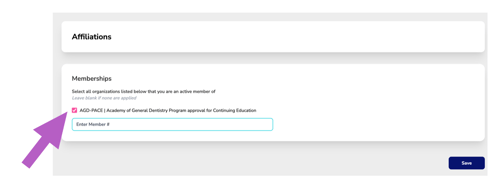
Check the box to confirm Yes, I am an AGD member
-
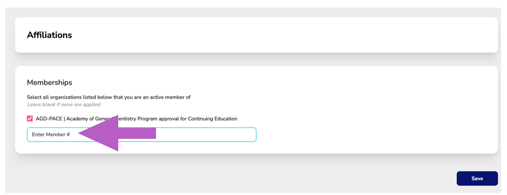
Enter your AGD member number
-
Your AGD member number must be accurate and active
-
Invalid member numbers will return a Not Found status
-
Once you:
-
-
-
Select that you are an AGD member, and
-
Enter your AGD member number
-
-
CE Zoom will save this information and automatically:
-
-
-
Pre‑select AGD membership
-
Pre‑fill your AGD member number for all future eligible courses.
-
-
You will only need to click Submit to AGD if the course is not using the verification wizard.
If you select No or skip this step, your course will not be submitted to AGD.
"Submit to AGD" Button (Effective January 21, 2026)
Starting January 21, 2026, CE Zoom added a Submit to AGD button on your dashboard for every CE Zoom‑offered course to show your AGD submission status.
Button Status Colors Explained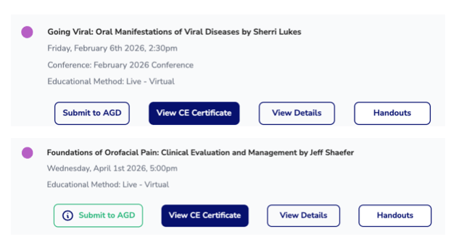
-
Blue & White – No AGD member number entered
-
Yellow – AGD member selected and number submitted
-
Green – Submission approved by AGD
-
Red – Submission not found by AGD
If you see a red Submit to AGD button, the course was not accepted by AGD. In this case, you will need to manually submit your completion to AGD for it to appear on your transcript.
Common reasons a submission may fail:
-
-
Incorrect AGD member number
-
Expired AGD membership
-
Email or physical address mismatch between CE Zoom and AGD records
-
When You’ll Be Asked for Your AGD Member Number
Live Courses & Self-Study Courses (Test Managed Outside of CE Zoom)
-
AGD membership confirmation is part of the verification wizard
-
Do not skip this step
Self‑Study Courses (Tests Managed on CE Zoom)
You will have two opportunities to submit your AGD member number:
-
Immediately after completing the test
-
After completing the course survey
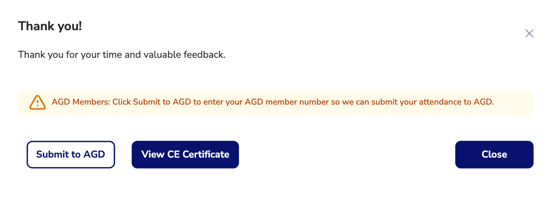
You may also access Submit to AGD from your dashboard for CE Zoom‑offered courses.
Important Note About Courses Offered by Other Companies
-
If a course is not offered by CE Zoom, AGD submission must be completed during verification
-
The Submit to AGD button will not be available later
If you fail to mark that you are an AGD member during verification, CE Zoom will save that you are not a member and the offering company will be released from submitting your completion to AGD.
Skipping this step means your course will not be sent to AGD.
AGD Submissions for Non‑CE Zoom Courses
CE Zoom is unable to display submission status for AGD courses offered by companies not connected to our automated AGD attendee manager.
If you have questions about AGD submission for a non‑CE Zoom course:
-
Open the course details
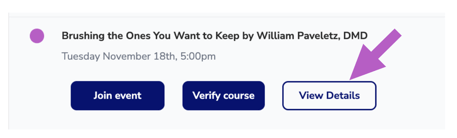
-
Scroll to the Course Details section
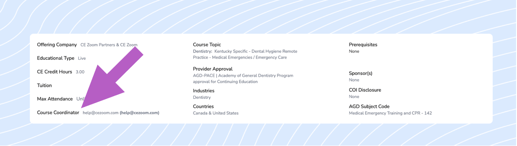
-
Locate the Course Coordinator's name and email
-
Contact the offering company directly
I
Saved AGD Information (Your Benefit)
Once you:
-
Select that you are an AGD member, and
-
Enter your AGD member number
CE Zoom will save this information and automatically:
-
Pre‑select AGD membership
-
Pre‑fill your AGD member number
for all future eligible courses.
You will only need to click Submit to AGD if the course is not using the verification wizard.