
Overview
The Employee Connection Manager allows you to connect team members to any connected office within your Executive Suite, assign CE Zoom benefits by license, and monitor their compliance across your organization. Select the office the employee belongs to and choose which of their licenses your organization will manage and provide tracking benefits for.
Step-by-Step Instructions
1. Go to the Employee Connection Manager
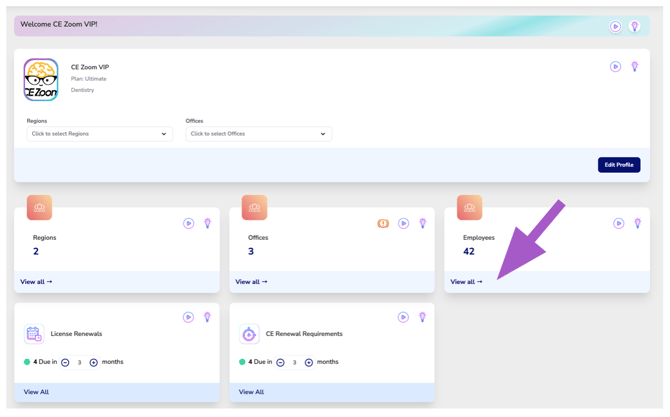
From your Executive Suite Dashboard, click “View all” under the Employees card.
2. Select the Connected Office
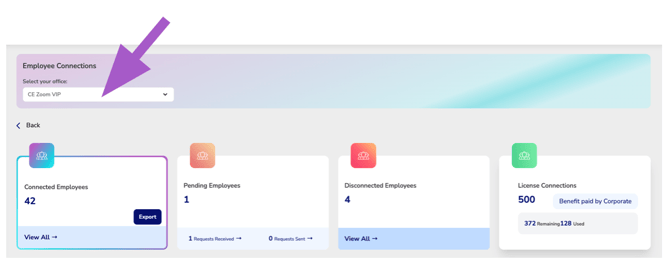
From the Select Your Office drop-down, choose the connected office that should send the team member's connection request.
Whenever possible, select the team member's primary office location. Once the request is accepted, the team member will be connected to that office within your Executive Suite structure.
Not using an office-based organizational structure? Select the office you are using to connect and manage all of your team members.
3. Navigate to Connect New Employees
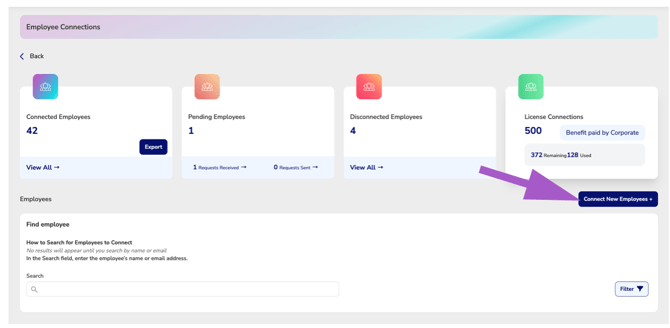
Make sure you are in the Connect New Employees manager before beginning your search.
Click Connect New Employees + to open the employee connection search. If you search from another view, such as Connected Employees, Pending Employees, or Disconnected Employees, your search will only search employees within that selected status rather than searching for new team members to connect.
4. Find the Employee
Use the Search field to locate the team member you want to connect to your organization.
Enter the employee’s name or email address. Search results will appear based on the information entered.
If needed, select Filter to narrow your results and help identify the correct employee.
Tip: If you're having trouble finding an employee, try searching by a different email address or variation of their name. If the employee still cannot be found, add them to your Team Member Connection Assistance Roster so CE Zoom Support can help locate or create their account.

5. Select Licenses and Send the Request
-
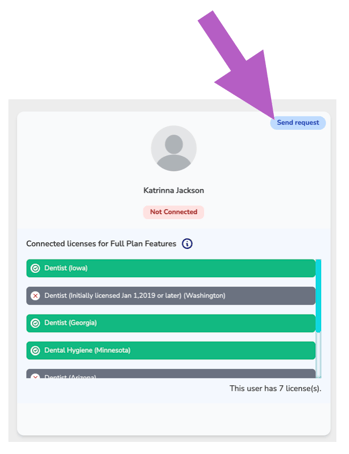
Locate the correct employee card. By default, all licenses the team member has added to their CE Zoom account will be displayed in gray, indicating that the license has not been selected to receive your organization's tracking and account benefits.
-
Select each license you want your organization to manage and provide compliance tracking benefits for. Once selected, the license will turn green.
-
You can select one, multiple, or all of the employee's licenses based on the licenses your organization will be managing.
-
Once you've selected the appropriate license(s), click Send Request to send the employee connection request.
⚠️ Heads-Up Notification: Missing Licenses Selected
If not all licenses are selected for upgrade, a message will appear: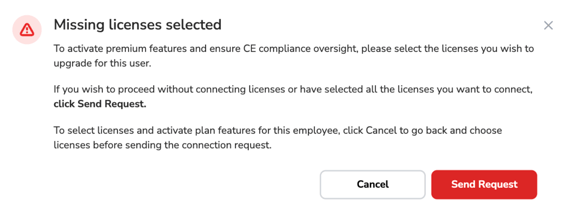
-
To proceed without connecting additional licenses, click Send Request.
-
To go back and select more licenses, click Cancel.
6. What Happens Next?
- Your selected employee will receive an invitation to connect.
- The request will appear under your Pending Connections Sent tab until the employee accepts.
- You may cancel the request anytime before they accept.
- Once your team members accepts they will recieve all benefits of your selected plan.