
The Sharing Scope determines which courses are shared with a connected organization. At any time, you can update an existing connection to:
- All Courses – Automatically share all your company courses.
- Selected Courses – Share only the specific courses you choose.
Steps to Change the Sharing Scope:
Open the Shared Course Manager
From your Company Dashboard, hover over Shared Course Manager, then select Companies You're Sharing With.
This opens the list of organizations that are currently connected to your company.
Select the Organization Type
Use the tabs at the top of the page to choose the type of organization whose sharing settings you want to update:

- Executive Connections
- Office Connections
- Company Connections
Edit the Sharing Connection
Locate the organization you want to update.
Hover over Manage Connection, then select Edit Sharing Settings.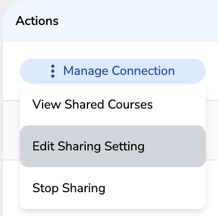
The Edit Sharing Settings window will open.
Update the Sharing Scope
Under Sharing Scope, choose one of the following options:
All Courses
- Automatically shares all your company courses with the connected organization.
Important: If the sharing scope for a connected organization is set to Share All Courses, all active courses will continue to be shared—even if you mark an individual course as Not Connected.
To stop sharing specific courses, you must first change the sharing scope to Selected Courses. Once the sharing scope has been updated, any courses listed under the Not Connected filter will immediately stop being shared with that organization.
Selected Courses
- Shares only the specific courses you choose.
- After a connection is made, you can manage which individual courses are shared with that organization.
Note: Changing from All Courses to Selected Courses does not automatically select any courses. Be sure to review your shared course list after saving to ensure the appropriate courses are being shared.
Save Your Changes
After making your updates, click Save Changes to apply the new sharing scope.