
Bulk Scheduling allows you to quickly duplicate an existing scheduled course date for the same presenter across multiple new dates. This feature keeps all course details identical — including time, location, delivery method, and webinar link — and only changes the offering date.
Before You Use Bulk Scheduling
⚠️ Bulk Scheduling keeps all details the same:
-
Start and end time
-
Time zone
-
Delivery method (In-Person, Virtual, Hybrid)
-
Physical address
-
Webinar/Zoom link
-
Registration settings
-
Visibility
The only thing that changes is the offering date.
Use Bulk Scheduling only if every detail of the course remains identical across all selected dates.
If the time, location, or webinar link changes, you should create a new scheduled course date instead.
How to Bulk Schedule Dates
Step 1: Access Scheduled Courses
-
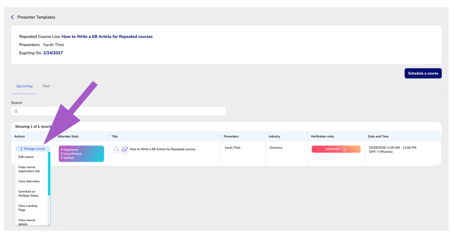
Locate the course you wish to bulk schedule.
-
Hover over Manage Course under the Actions column.
-
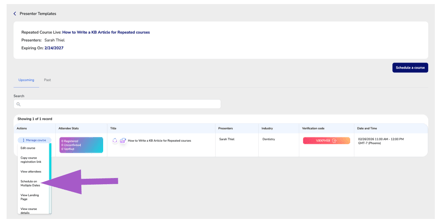
Click Schedule on Multiple Dates.
Step 2: Select Your Dates
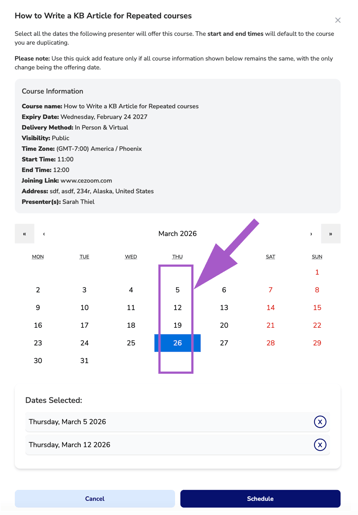
A calendar date picker will appear.
-
Select all the dates this exact course setup will be offered.
-
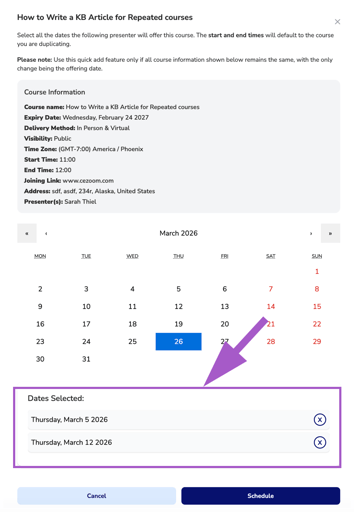
Confirm the dates you selected
-
Click Schedule.
-
All selected dates will be added instantly as scheduled offerings.
-
Each new date will remain connected to:
-
-
-
-
The Master Repeated Course
-
The Assigned Presenter
-
-
Best Practice Recommendation
We recommend bulk scheduling one month at a time, or 10 dates at a time.
This helps:
-
Prevent scheduling errors
-
Maintain flexibility for time or location adjustments per month
-
Reduce the need for editing or deleting multiple sessions later