
Overview:
Executive Suites can assign regions to their connected offices to better organize and manage teams. Regions help filter status, monitor compliance, and streamline reporting across groups of offices.
Steps to Assign or Edit a Region:
-
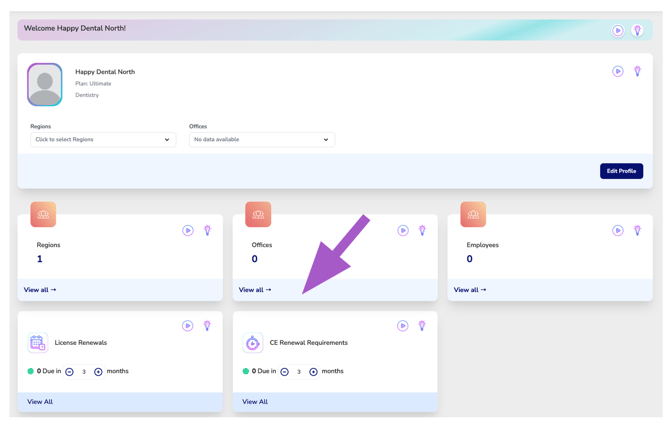
From your Dashboard, scroll to the Office section and click “View All.”
-
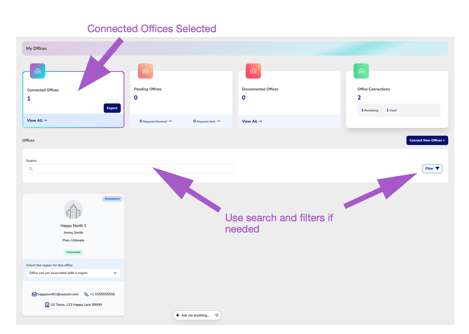
From the Office Manager screen, ensure the Connected Offices card is selected (this is the default view). Use the Search bar or Filter options to locate the office you want to assign a region to.
-
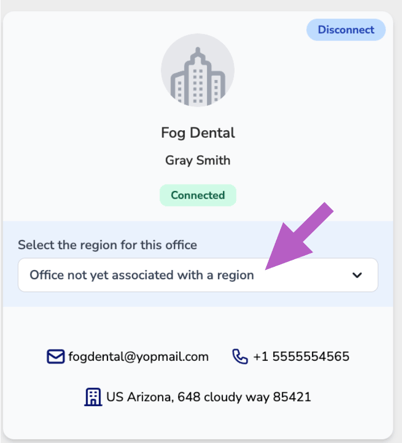
On the office card, locate the dropdown menu under the heading “Select the region for this office.”
-
Click the dropdown and choose the appropriate region from the list.
The selection will be saved automatically.
Need to add a region: How to Create a Region
Assigning regions gives you the ability to filter views, reports, and compliance summaries by region across your executive suite.