
Customized Registration Question Sets allow you to collect additional information from attendees during registration. Question sets are created and managed directly within the Course Wizard and can be reused across Live, Self-Study, and Repeated Courses.
Customized Registration Question Sets can only be created and managed within the Course Wizard while building or editing a course.
They are not managed from a separate settings page.
Best Practice Recommendation
Because these questions are presented during registration and must be completed before payment is finalized, we recommend:
-
Keeping questions concise
-
Avoiding overly complex or excessive question sets
-
Collecting only information that is necessary
Lengthy or demanding registration questions may discourage attendees from completing their registration.
Step 1: Access Customized Questions
Within the Course Wizard:
-
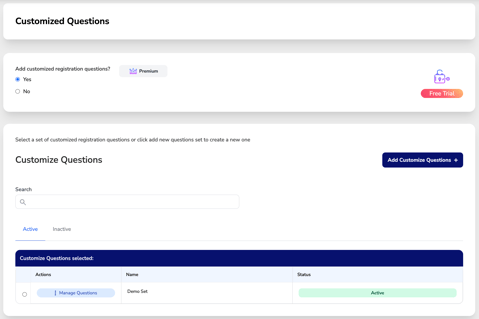
Navigate to the Customized Questions section.
-
Select Yes under “Add customized registration questions?” (No is the default setting)
-
Click the + Add Customized Questions button.
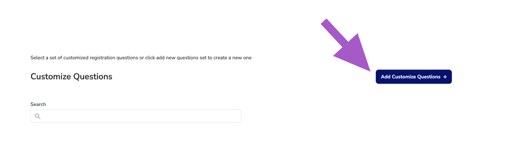
This will open the Question Set Creation Wizard.
Step 2: Settings
-
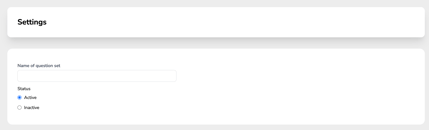
Name of Question Set: Enter the name of your question set.
-
⚠️ This name is visible to attendees during registration.
-
It is not an internal-only label.
-
Choose a clear, professional title that reflects the purpose of the questions (example: Pre-Course Requirements or Organization Compliance Confirmation).
2. Status: Active or Inactive
-
Active – The question set is available for selection when adding it to a course.
-
Inactive – The question set is hidden from quick selection filtering.
-
Inactive question sets can still technically be used, but this is not recommended.
-
We recommend setting unused question sets to Inactive to keep your selection list clean and streamlined during course creation.
-
Step 3. Design Your Question Set
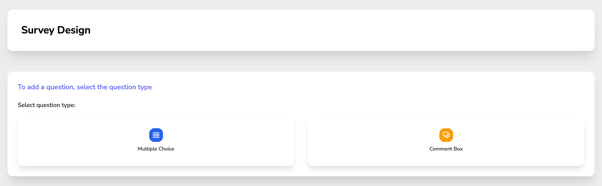
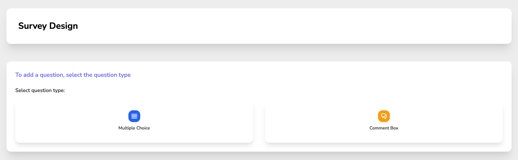
Under Survey Design, you will build your customized questions.
You can choose from two question types:
Multiple Choice-
-
-
Use Multiple Choice when you need structured, selectable responses from attendees.
-
This option allows you to provide predefined answer choices, ensuring consistent data collection and easier reporting.
-
At least two answer options are required, and additional choices can be added as needed.
-
-
-
Multiple Choice questions help standardize responses and reduce incomplete or unclear answers.
-
Comment Box
-
-
Use Comment Box when you need open-ended responses from attendees.
-
This option allows registrants to type a custom response in their own words.
-
Comment Box questions provide flexibility but may result in varied responses that require manual review.
-
Step 4. Add Your Questions
-
Select the question type.
-
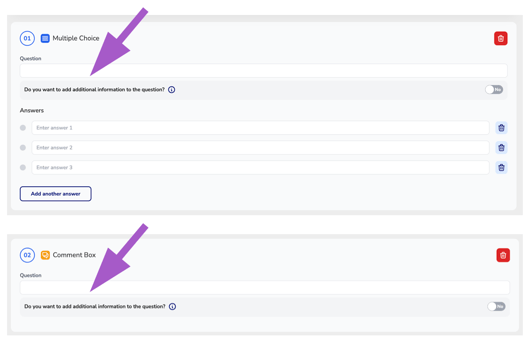
Type your question in the Question Field.
-
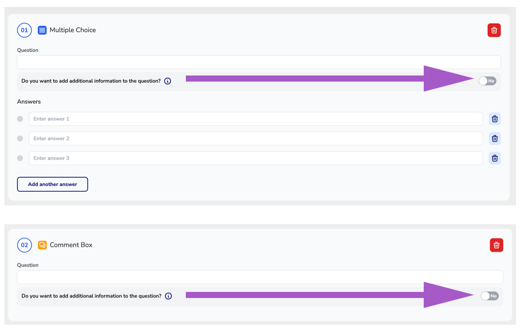
Enable the Additional Info toggle to add supporting guidance text that appears in lighter formatting below the question.
-
This is helpful for clarifying expectations or providing instructions.
-
For Multiple Choice Questions
-
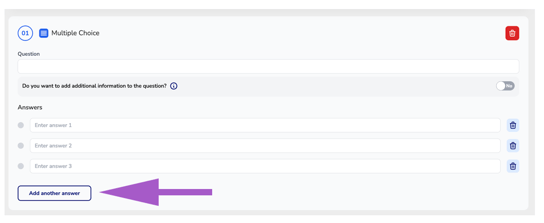
By default, three answer options appear.
-
At least two answer options are required.
-
Add more answer choices by clicking “Add Another Answer.”
Step 5. Finalize Your Question Set
-
Review all questions for clarity and accuracy.
-
Click Finish to save your question set.
Your Customized Registration Question Set is now ready to be assigned to courses.