
Overview
The Credentialing & Doc Compliance Manager allows your organization to select specific credentials and documents you want visibility into, such as professional liability insurance, DEA registrations, NPI records, radiology badges, business licenses, and other professional or organizational documentation.
Adding a Credentialing & Doc Compliance Group does not assign the credential or document to your team members. Instead, CE Zoom monitors the individuals who have already added that credential or document to their Professional account and chosen to track it.
Once added, the Compliance Manager will begin providing status information so you can quickly identify current records, upcoming renewals, past-due records, and team members with no record on file.
How to Add a Credentialing & Doc Compliance Group
1. Go to the Credentialing & Doc Compliance Manager
From your Executive Suite or Office Manager Dashboard, scroll down to the appropriate section: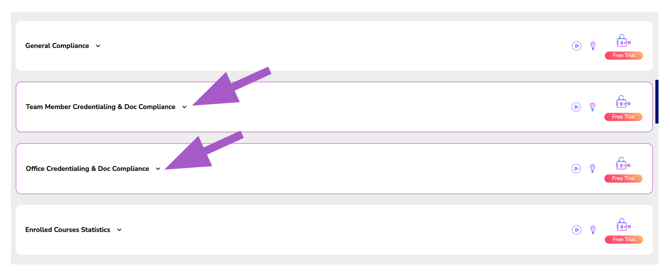
-
Team Member Credentialing & Doc Compliance
Tracks credentials and documents maintained by individual team members, such as DEA registrations, malpractice insurance, and radiology badges.
-
Office Credentialing & Doc Compliance
Tracks credentials and documents maintained by the office or organization, such as business licenses, liability insurance, permits, and other organizational records.
Click the section to expand the Compliance Manager.
2. Click “Add New Group +”
Click Add New Group + in the upper-right corner of the Compliance Manager Section.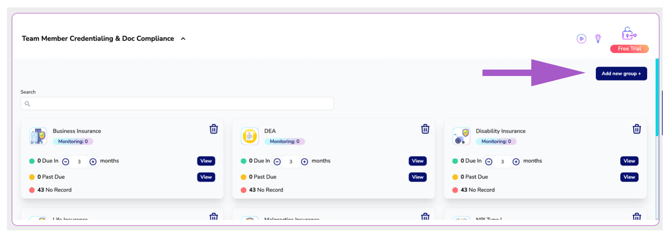
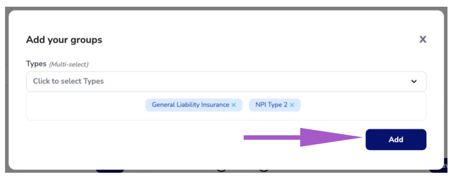
The Add Your Groups window will open.
3. Select the Credentials & Documents to Monitor
Click the Types drop-down expansion arrow to view the available credentials and documents.
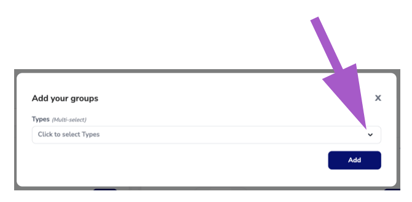
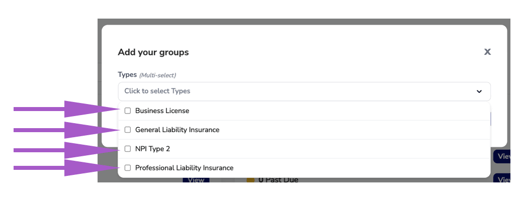
Select the checkbox next to each credential or document you want your organization to monitor.
You can select multiple types at once.
4. Click “Add”
Once you've selected everything you want to monitor, click Add.
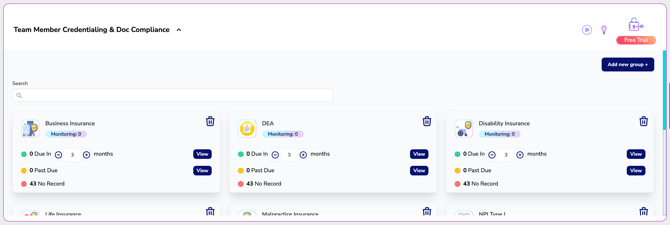
Each selected credential or document will now appear as its own group within your Credentialing & Doc Compliance Manager.
What Happens After You Add a Group?
CE Zoom will begin displaying compliance statistics for the selected credential or document.
For Team Member Credentialing & Doc Compliance, tracking is based on the team members who have chosen to monitor that credential or document within their own CE Zoom Professional account.
This means adding a group does not automatically require or assign that credential to your employees.
What If My Organization Requires a Credential or Document?
If your organization requires employees to maintain a particular credential or document, make sure the applicable team members have added it to their CE Zoom Professional account and selected it for monitoring.
Once they do, their credential or document information can be included in your organization's compliance monitoring.
Employees can follow the How to Add a Credential or Document to Monitor instructions included in their Professional Setup Guide.
Need to Ask Employees to Add a Requirement?
We've also created an employee email template that explains what they need to add and how to add it to their CE Zoom account.
Refer to your Credential & Document Compliance Manager Onboarding Guide for the ready-to-send email and additional setup resources.