
Accept an Office’s Connection Request
There are two ways to access a pending office connection request. Choose the option below that matches what you see on your CE Zoom account.
-
I Have a Connection Notification
Access your pending request directly from the notification on your Professional Dashboard.
-
I Don’t Have a Connection Notification
Go to My Offices to manually review your pending office connection requests.
Connection Request Notification
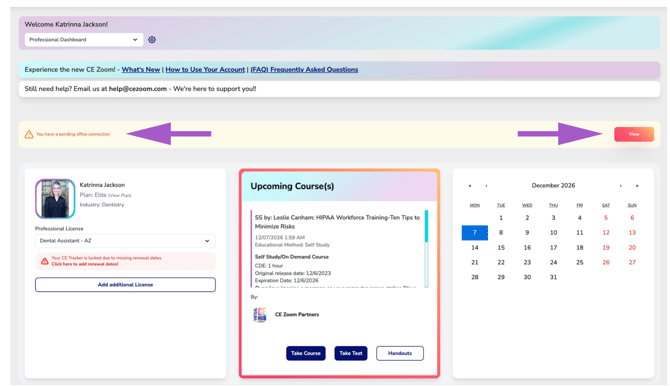
If an office has sent you a connection request, a Pending Office Connection notification will appear near the top of your Professional Dashboard.
Click View on the notification to go directly to the pending connection request.
Once you've confirmed the correct office, click Accept to approve the connection.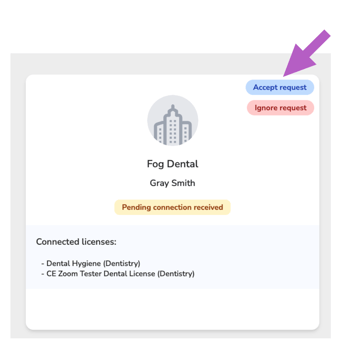
Don’t see a Pending Office Connection notification?
You can still review all office connection requests from My Offices.
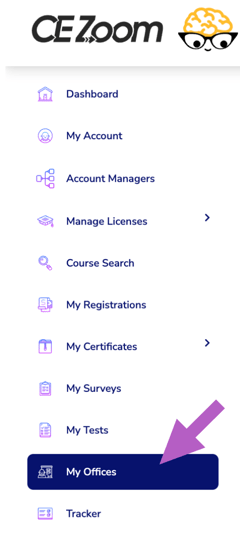
- From your Dashboard, click “My Offices” in the left-hand navigation. This is where you can view and manage the offices connected—or requesting to connect—to your Professional account.
-
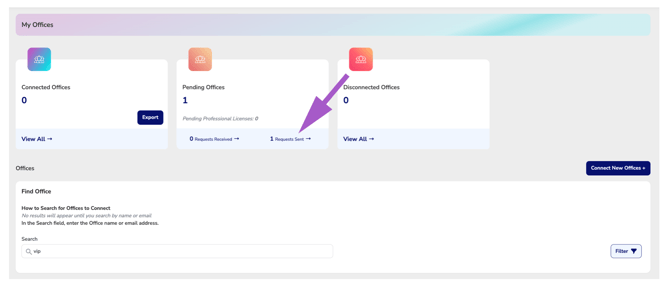
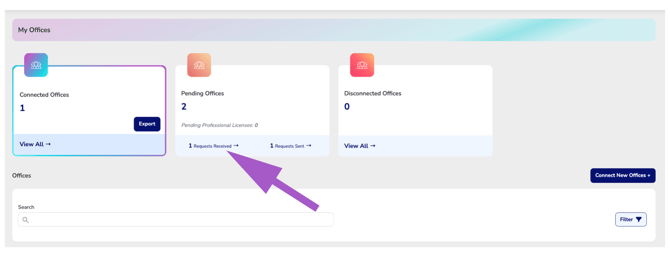
Go to the “Pending Connections” tab in My Offices. This section displays connection requests that are still waiting for action, including requests you've received from an office and requests you've sent.
-
Under Requests Received, locate the office that has requested to connect with your account.
Before accepting, review the office information to make sure you are connecting with the correct organization or location, especially if your organization has multiple offices.
-
Once you've confirmed the correct office, click Accept to approve the connection.
Your Professional account will now be connected to that office. If your organization has selected any of your eligible licenses to receive its CE Zoom plan benefits, those benefits will be applied through the connection.