
Overview
Office Managers can receive connection requests from professionals who wish to be linked to their office for CE compliance tracking. Accepting the request allows you to assign upgraded license benefits to the employee, including access to the compliance tracker and premium tools.
Steps to Accept an Employee Connection Request
1. Go to Employee Connections
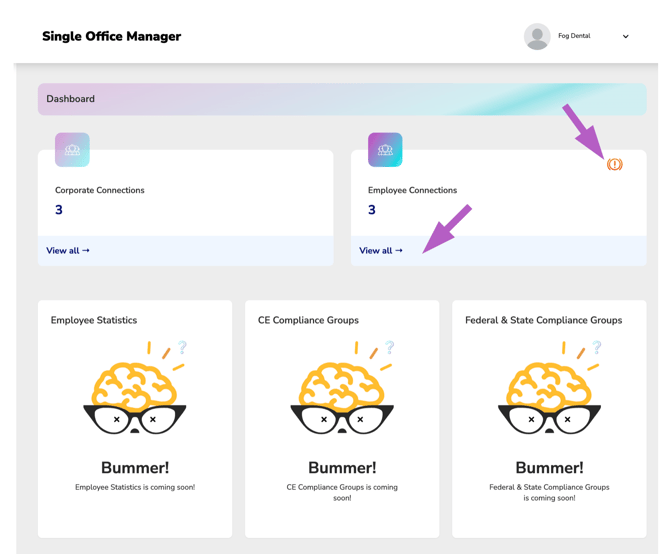
From your Office Manager Dashboard, click “View all” under the Employee Connections section.
📢 Tip: If you have any received connection requests, a notification icon will appear next to this section.
2. Click “Pending Connections”
In the Employee Connections Manager, navigate to the Pending Connections card and click on the requests received sub-tab to view all incoming requests.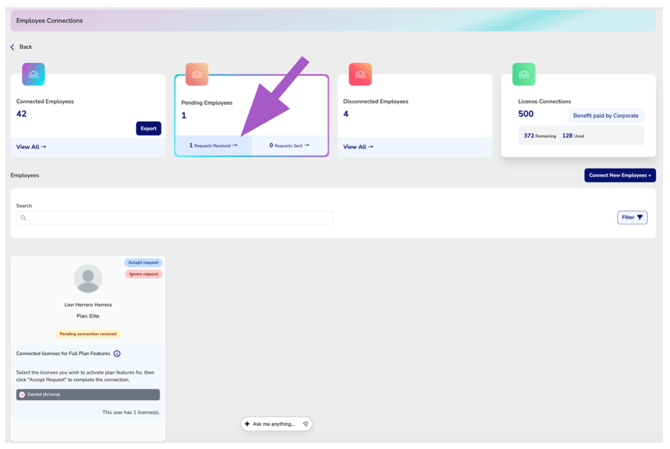
4. Review the Pending Connection Request
Review the team member's information to confirm you are accepting a connection request from the correct individual.
Before accepting the request, review the licenses currently listed on their CE Zoom account and select the license(s) you want your organization to upgrade and provide full plan benefits for.
By default, licenses are displayed in gray, meaning they are not selected for an upgrade.
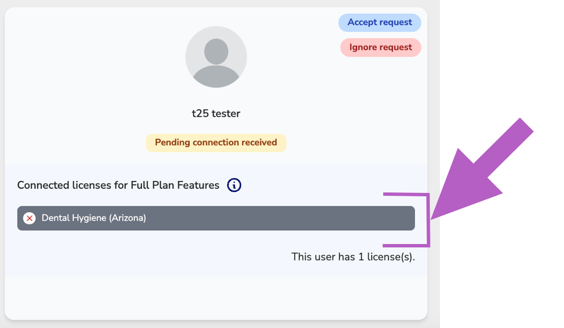
Click each license you want to upgrade; selected licenses will turn green. Once you've confirmed the team member and selected the appropriate license(s), click Accept Request to complete the connection.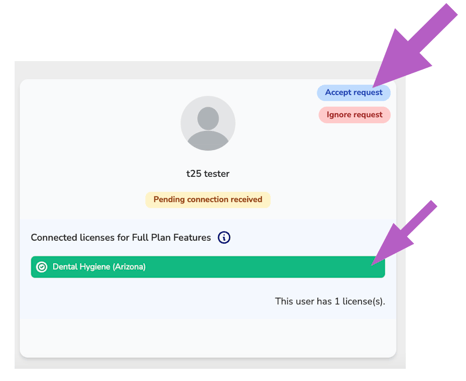
5. Missed Licenses Notification
If you don’t select any or all of the licenses before clicking Accept Request, a notification will appear: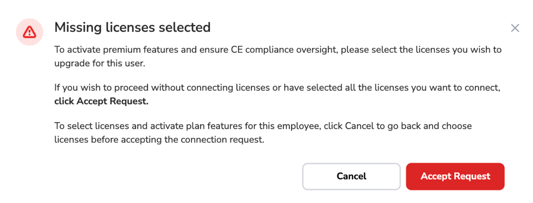
-
Click “Cancel” to go back and select licenses to upgrade.
-
Click “Accept Request” to proceed with the licenses currently selected (even if none are selected).
6. What Happens After Connection
Once accepted, the employee will move to your Connected Employees tab and begin receiving your account-level CE Zoom benefits for each upgraded license selected.