Overview
If your Executive Suite or Corporate organization has sent your office a connection request, you can review and accept it directly from your Office Manager account. Once accepted, your office becomes part of the corporate organization, allowing the corporate team to manage compliance across connected locations while your office and employees receive the benefits and services included with the organization's Executive Suite plan.
Accept a Request
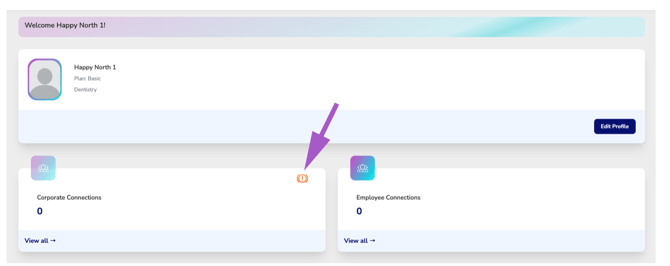
If a corporate organization has sent your office a connection request, you'll receive a notification on your Office Dashboard.
Step 1: Look for Pending Connection Requests
When a connection request has been received, an orange Pending Connection icon will appear on the Corporate Connections card of your Office Dashboard, indicating that your office has one or more connection requests awaiting your review.
Tip: If you do not see the orange pending icon, your office does not currently have any recieved pending corporate connection requests.
Step 2: Open Pending Requests
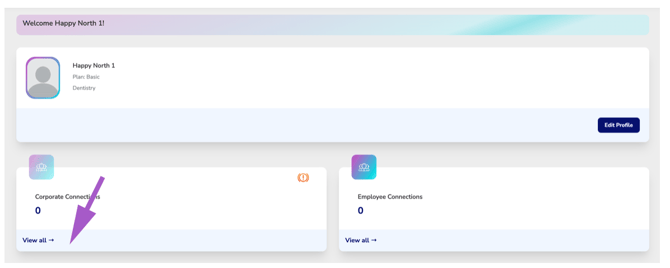
- From the Corporate Connections card located on your dashboard, select View All.
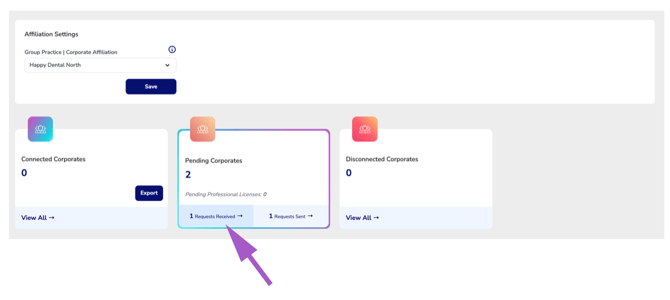
- From the Corporate Connections Manager page, select Requests Received to view all connection requests that have been sent to your office.
Step 3: Review the Request
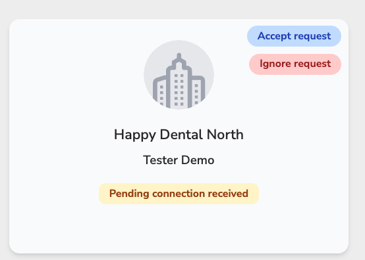
Each pending request displays:
- The corporate organization's name.
- The organization requesting the connection.
- The current connection status.
Verify that the request is from the correct corporate organization before accepting.
Until the connection is accepted, you’ll only see the corporate name, manager name, and current connection status.
Step 4: Accept or Ignore the Request
Select one of the following options:
- Accept Request — Establishes the connection between your office and the corporate organization.
- Ignore Request — Declines the connection request. No connection will be created.
Once you select Accept Request, the connection becomes active immediately, and the corporate organization will appear on your Connected Corporates page.
Important: Before accepting a connection request, confirm that it was sent by the correct corporate organization. Once connected, the organization will be able to manage your office according to the permissions granted through the Executive Suite.