
Find a Course is an upgraded feature designed to help you quickly locate courses that satisfy specific CE requirements for your selected license. Accessible directly from your dashboard’s required tracker groups or within your license tracker, this tool automatically filters courses based on your CE requirement group and license type.
You’ll be taken to a customized, pre-filtered course results page showing courses with a direct topic match. From there, you can view course details, confirm acceptable education methods, and see how the course applies across all of your upgraded licenses. By default, results include all delivery methods, with the option to filter to live or self-study courses. You can also expand your search beyond included Elite courses to view outside offerings when needed.
How to Access Find a Course
The Find a Course feature is available to upgraded users and can be accessed in two convenient locations within CE Zoom.
Option 1: From Your Dashboard (Quick Access)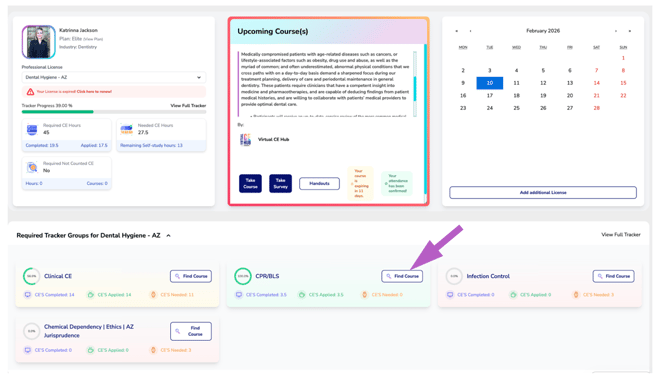
-
Log in to your CE Zoom account.
-
Go to your Dashboard.
-
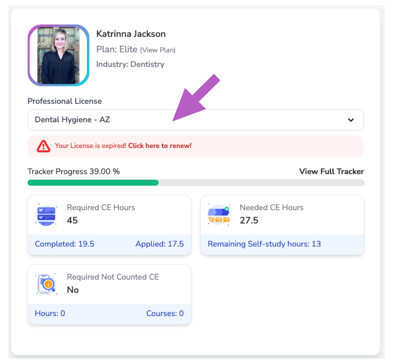
Select your license.
-
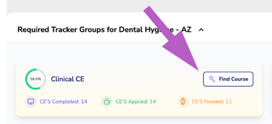
Click Find a Course next to the CE requirement you want to fulfill.
-
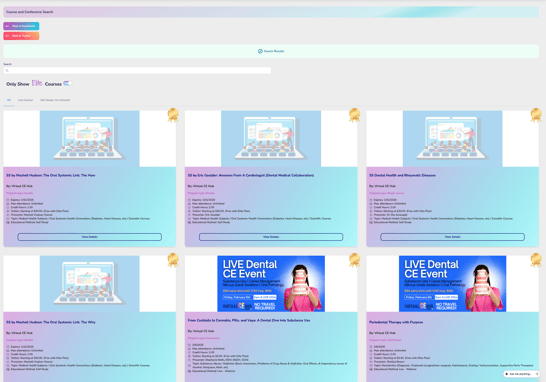
You’ll be taken to a customized, filtered course results page showing courses that match that specific requirement for your selected license.
Option 2: From Your License Tracker
-
Log in to your CE Zoom account.
-
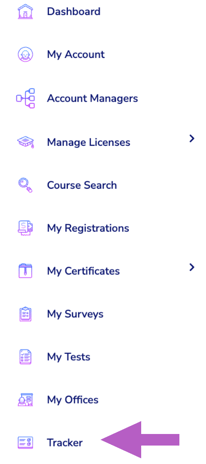
From the navigation menu, click Tracker.
-
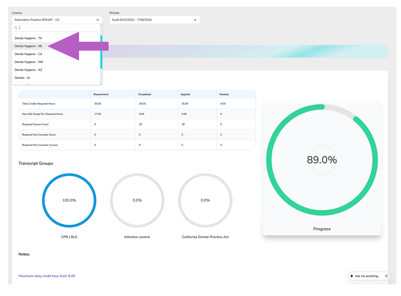
Select the license you want to track.
-
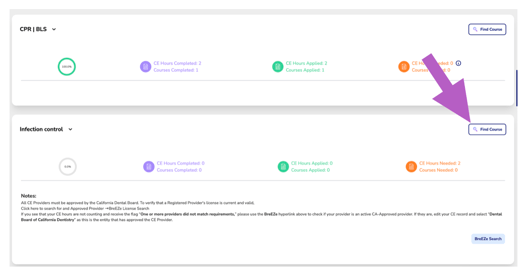
Navigate to the applicable CE requirement group within the tracker.
-
Click Find a Course to view courses that meet that specific requirement.
What Happens Next?
-
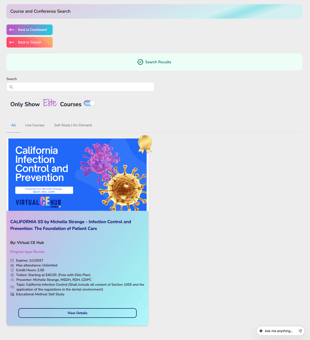
You’ll land on a pre-filtered course results page with direct topic matches.
-
Click View Details on any course to:
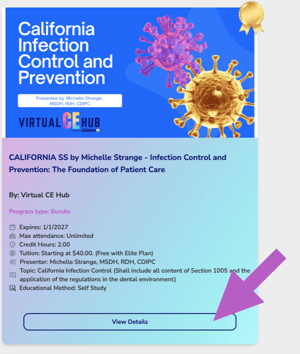
-
Confirm acceptable education methods
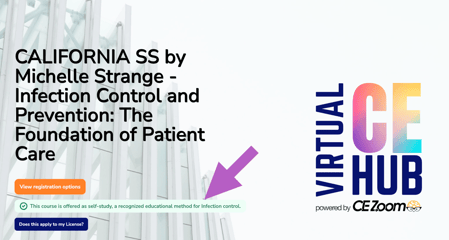
-
Click Does this Apply to my License? to see how the course applies to your selected license and any other upgraded licenses
-
More Info: Does this Apply to my License
-
By default, results show all delivery methods, with the option to filter to Live or Self-Study.
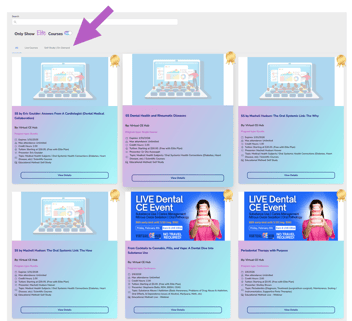
-
We start by showing Elite Courses, since they’re included with your Elite membership. If you’d like to explore more options, simply toggle off Elite Courses to see outside courses available for a provider’s fee.
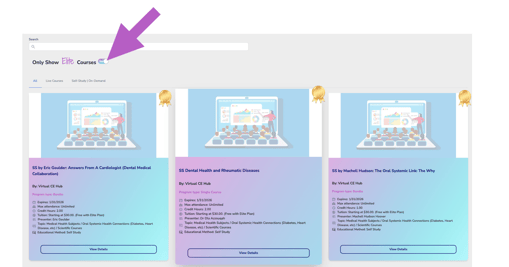
📌 Need oter filtes or custom searching? Visit the full Course Search page.